Secure Your Lecture PDFs: Stop Students Sharing Homework and Protect Course Materials
As a professor, I’ve lost track of how many times I’ve caught students sharing my lecture slides or homework PDFs online. It’s frustrating to pour hours into creating detailed course materials, only to see them circulated without permission. Worse, some students even attempt to convert these PDFs into editable Word or Excel files, stripping away all the security I intended. I needed a solution to regain controlsomething that keeps my content safe while still letting students interact with it for learning purposes. That’s when I discovered VeryPDF DRM Protector.
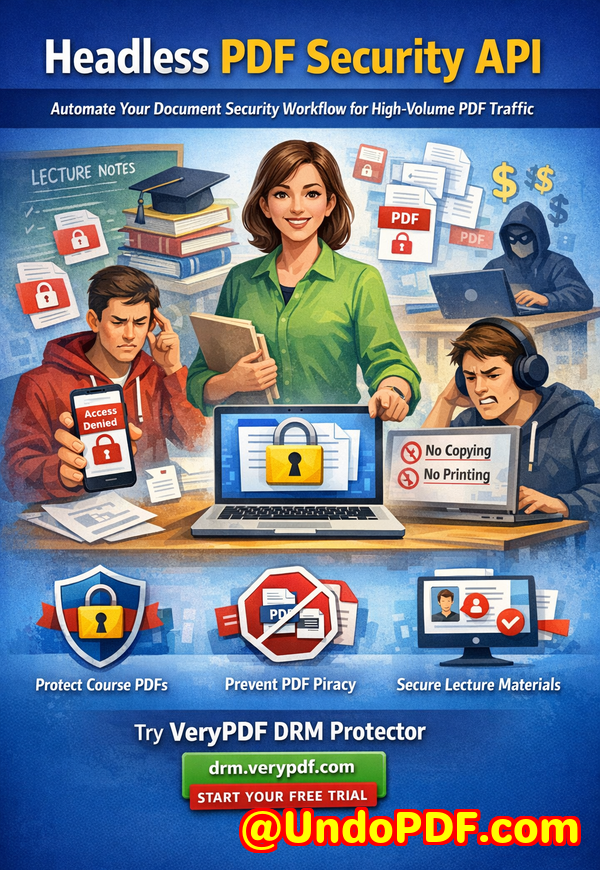
One of the biggest headaches in teaching today is digital content leakage. PDFs are convenient for sharing lecture slides, homework, and paid course materials, but they’re also easily copied, printed, or shared without your knowledge. Many professors face these common problems:
-
Students sharing PDFs online: It’s easy for students to forward files to classmates who aren’t enrolled, post them on forums, or upload them to file-sharing websites. Suddenly, paid content meant for a controlled audience is free for anyone to access.
-
Unauthorized printing, copying, or conversion: Even if you trust your students, PDFs can be printed or converted into Word, Excel, or images, which removes control over formatting and intellectual property.
-
Loss of control over course materials: Once a file is out there, tracking who has access or preventing redistribution is nearly impossible.
This is where VeryPDF DRM Protector makes a real difference.
With DRM Protector, I can restrict PDF access to only enrolled students or specific users. Each student gets a unique account, and I can control exactly what they can do with the file. No printing, no copying, no forwarding, and no removing DRM. My lecture slides, homework, and paid course content stay exactly where I want themsecure and under my control.
I’ve used it for multiple courses, and it’s been a lifesaver in preventing content leakage. Here’s how it works in a classroom scenario:
-
Restrict access: I upload PDFs and assign them to specific student accounts. Only those students can open the files.
-
Prevent misuse: Students can read and annotate PDFs online, but they cannot copy, print, or convert the content. Even if they try to share it, the file remains protected.
-
Track engagement: DRM Protector allows me to see who has accessed each PDF, so I know students are keeping up with the material.
Annotation features are another game-changer. With VeryPDF DRM Protector, students can:
-
Highlight text for important concepts.
-
Add freehand drawings or text annotations directly in the PDF.
-
Insert stamps, arrows, and shapes for diagrams or comments.
-
Use signatures or sticky notes for submitting homework feedback.
All annotations are saved per user and per PDF file, so students can pick up right where they left off next time they open the PDF. It’s a secure, interactive learning experience that encourages engagement without compromising content safety.
Here’s a real example from my classroom: I was preparing a set of lecture slides for an advanced economics course. Previously, I had issues with students sharing the PDFs outside the class. After activating DRM Protector, I could:
-
Upload the slides to the DRM system.
-
Enable annotation features so students could mark up graphs and key formulas.
-
Restrict access to enrolled students only.
-
Prevent printing and copying.
Not only did this prevent unauthorized distribution, but students were more engagedthey could highlight and comment on slides during class. I even noticed that it reduced emails asking for clarifications because annotations were clearer and structured.
Activating annotations is simple:
-
Go to the VeryPDF DRM web page to view protected PDFs.
-
Click “Actions” “Edit Settings” on your PDF file.
-
In “Advanced Settings,” turn on annotation options like Highlight, FreeText, Ink, Stamp, and Save Annotations.
-
Click “Save.”
-
Open the “Enhanced Web Viewer” to see the PDF with annotation tools online.
The benefits go beyond classroom control:
-
Prevents PDF piracy: Hackers or students cannot bypass DRM security to redistribute your content.
-
Stops conversions: PDFs remain as intendedthey cannot be converted into Word, Excel, or images.
-
Maintains teaching workflow: Students interact with content without creating new management headaches.
I remember one semester where a student accidentally posted a homework PDF to a public forum. Thanks to DRM Protector, even though the file was accessible temporarily, no one outside the course could open it or copy its content. It saved me hours of follow-up emails and prevented potential academic misconduct.
Another example: I run an online paid course. Before using DRM Protector, I worried about students sharing materials with friends. After enabling DRM, I could track exactly who accessed each PDF, and any attempt to remove DRM failed. The peace of mind was invaluable.
It’s not just about restrictionit’s about practical teaching benefits. Students can highlight, annotate, and interact with PDFs directly in their browser or on mobile devices, while I maintain full control. Annotations can be exported, reused, or reviewed for grading and feedback.
Using VeryPDF DRM Protector has transformed how I handle digital course materials:
-
Secure lecture materials: Students can read and annotate without risk of copying or printing.
-
Protect homework PDFs: Each student’s submission remains private and secure.
-
Stop PDF piracy: Paid course content remains exclusive.
-
Easy distribution: Upload once, control everything.
-
Peace of mind: Focus on teaching rather than chasing leaked files.
I highly recommend this to anyone distributing PDFs to students. Try it now and protect your course materials: https://drm.verypdf.com. Start your free trial today and regain control over your PDFs.
FAQs
Q1: How can I limit student access to PDFs?
A1: VeryPDF DRM Protector allows you to assign PDFs to individual student accounts, restricting access to only enrolled users.
Q2: Can students still read PDFs without copying, printing, or converting?
A2: Yes. Students can read and annotate PDFs directly in the browser while all copy, print, and conversion functions are disabled.
Q3: How can I track who accessed my PDFs?
A3: DRM Protector provides access logs for each file, so you can see which students opened the PDF and when.
Q4: Does it prevent PDF piracy and unauthorized sharing?
A4: Absolutely. Files are protected with DRM, so they cannot be forwarded, shared online, or converted to other formats.
Q5: How easy is it to distribute protected lecture slides and homework?
A5: Extremely easy. Upload the PDF, set user restrictions, enable annotations, and share the link with your students.
Q6: Can students annotate PDFs securely?
A6: Yes. Annotations like highlights, freehand drawings, text notes, stamps, and signatures are saved per user and per PDF, ensuring both interactivity and security.
Q7: Is this solution mobile-friendly?
A7: Yes. DRM Protector supports annotations and viewing on both desktop and mobile devices, making it convenient for students on the go.
Keywords
protect course PDFs, prevent PDF piracy, stop students sharing homework, secure lecture materials, prevent DRM removal, anti-conversion PDF DRM, PDF annotations for students, secure homework PDFs, online course content protection, DRM PDF software