How to Safely Redact Sensitive Data from PDFs and Protect Privacy in Business Documents
Last month, we were preparing a batch of HR records to share with an external audit firm. Everything seemed straightforward until someone noticed that a few PDFs still contained employees’ personal emails and ID numbers. A single oversight like this could have triggered a compliance nightmarethink GDPR fines, reputational damage, or worse, a legal dispute. That moment was a wake-up call: even experienced teams can accidentally expose sensitive data if PDFs aren’t properly redacted.
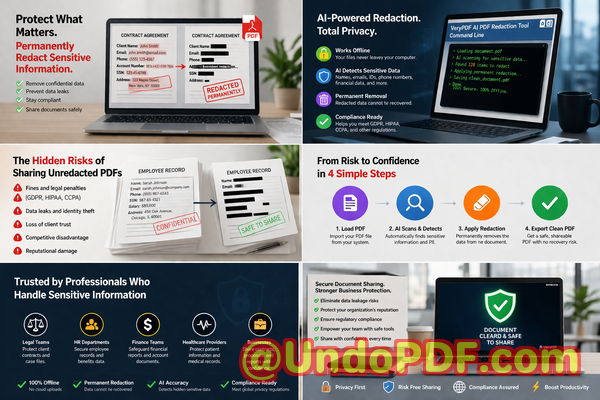
Sensitive information leaks aren’t just theoreticalthey happen every day. Contracts, HR documents, financial reports, or even internal memos can carry names, emails, phone numbers, social security numbers, and confidential business strategies. Sharing these PDFs without proper redaction puts your organization at serious risk. But manually blacking out text or using unreliable online tools isn’t enough. Here’s how AI-powered PDF redaction, done entirely offline, can solve these problems and safeguard your business.
Why Manual Redaction Fails and How Businesses Risk Exposure
Many teams still rely on old-school methods: opening a PDF, drawing black boxes over text, and calling it a day. Unfortunately, this approach is deceptively dangerous.
-
Recoverable data: Simply covering text doesn’t remove it. Anyone with basic PDF tools can copy and paste the underlying information. A blacked-out social security number? Still accessible to prying eyes.
-
Human error: Manually searching for every email, phone number, or sensitive clause is tedious. Miss one line, and you could be in violation of data protection laws.
-
Online redaction tools: It’s tempting to upload PDFs to web-based services, but you’re essentially handing your confidential information to a third party. Even if the service claims privacy, your files leave your control.
These scenarios are more than hypothetical. A financial firm I worked with once sent a batch of investment contracts to a partner. They had attempted manual redaction, but the partner discovered recoverable client bank account numbers. Not only did this trigger an internal investigation, but it also risked regulatory penalties.
The Practical Solution: AI-Powered PDF Redaction Offline
This is where VeryPDF AI PDF Redaction Tool Command Line comes in. Unlike traditional methods, it automatically detects and permanently removes sensitive information, all while keeping your documents offline.
How it solves real business risks:
-
Automatic detection of sensitive data: Names, emails, phone numbers, addresses, IDs, financial informationAI scans the document intelligently to find what you need to remove.
-
Permanent removal: No more visual black boxes that leave underlying text exposed. The confidential data is fully deleted, leaving a clean PDF ready to share.
-
Offline processing: All documents stay on your computer. There’s no risk of accidentally uploading sensitive files to an unknown server, ensuring 100% privacy.
Real Business Examples
-
Legal Documents: A law firm needed to share case files with multiple partners but wanted to avoid disclosing client identities. By running the files through VeryPDF AI PDF Redaction Tool Command Line, they automatically masked all client names and contact information while keeping the document usable.
-
HR Records: A company preparing payroll PDFs for internal audit realized that manual redaction could miss social security numbers. The offline AI tool identified and redacted these sensitive fields in seconds, preventing potential fines.
-
Financial Reports: A finance team wanted to share quarterly reports but needed to protect sensitive revenue figures and client details. The AI tool permanently removed confidential numbers, enabling secure sharing without compromising privacy.
How to Redact PDFs Safely: Step-by-Step Workflow
-
Load PDF: Open the PDF in VeryPDF AI PDF Redaction Tool Command Line.
-
Detect Sensitive Data: Let the AI scan for PII, financial info, legal clauses, and business secrets.
-
Review: Check which items will be redacted. You retain control and can adjust if needed.
-
Apply Redaction: The tool permanently removes all flagged information.
-
Export Clean PDF: Share confidently, knowing the document no longer contains recoverable sensitive data.
Common Types of Data to Redact
-
Personal Identifiable Information (PII): Names, emails, phone numbers, addresses
-
Financial data: Bank accounts, credit card numbers, salary info
-
Business secrets: Strategy documents, pricing models, proprietary workflows
-
Legal/confidential clauses: Contracts, NDAs, client agreements
Using AI-powered tools ensures nothing slips through. Employees no longer have to hunt line by line or risk human error.
Privacy and Compliance Benefits
-
Prevent data leaks: Permanent removal of sensitive info protects against accidental exposure.
-
Avoid fines or legal exposure: Ensures compliance with GDPR, HIPAA, or other local data protection laws.
-
Offline security: Files never leave your computer, eliminating the risk of third-party breaches.
-
Time efficiency: What once took hours manually now takes minutes, freeing teams to focus on business priorities.
My Recommendation
I highly recommend VeryPDF AI PDF Redaction Tool Command Line to anyone who handles sensitive documents regularly. Switching from manual methods or online redaction tools to this AI-powered offline solution has saved businesses from potential fines, client trust issues, and embarrassing data leaks.
Try it now and securely redact your PDFs: https://veryutils.com/smart-redact-server-ai-powered-pdf-redaction-software
Start your free trial today and ensure your sensitive data is permanently removed before sharing.
FAQs
1. How can I permanently remove sensitive data from a PDF instead of just hiding it?
Use AI-powered redaction tools like VeryPDF AI PDF Redaction Tool Command Line, which fully deletes the data rather than covering it visually.
2. Can others recover redacted information from my PDF?
No. When redacted properly with this tool, the sensitive data is permanently removed and cannot be restored.
3. Is it safe to use online PDF redaction tools?
Online tools risk uploading confidential information to third-party servers. Fully offline solutions are safer for sensitive documents.
4. Does this tool work completely offline?
Yes. All processing occurs on your local machine, ensuring that your documents never leave your control.
5. What types of sensitive data can be automatically detected and removed?
Names, emails, phone numbers, addresses, financial information, legal clauses, and business secrets can all be detected by AI.
6. Can I review the redactions before applying them?
Absolutely. The tool allows you to review and approve detected sensitive information before final redaction.
7. How does this tool help with GDPR compliance?
By permanently removing PII from documents, it ensures that shared PDFs do not contain sensitive personal data, reducing compliance risk.
8. Will this affect the readability of my PDFs?
No. The tool preserves the original layout and content of non-sensitive information while removing confidential data.
9. Can it handle large batches of documents?
Yes. The command line interface supports bulk processing, making it ideal for legal, HR, and finance departments.
10. Is technical expertise required to use this tool?
Minimal. While it offers command line flexibility, the workflow is intuitive and designed for business professionals.
11. What types of documents are suitable for redaction?
Contracts, HR records, financial reports, medical files, internal memos, and any PDF containing confidential information.
Keywords
redact sensitive data, remove confidential information, PDF redaction tool, protect privacy in PDFs, prevent data leaks, offline PDF redaction, secure document sharing, AI PDF redaction, GDPR compliance, confidential PDF protection