UndoPDF

How to Integrate PDF to Vector Conversion into Your Websites Backend Using VeryDOC SDK

How to Integrate PDF to Vector Conversion into Your Website’s Backend Using VeryDOC SDK


Learn how to easily integrate the VeryDOC PDF to Vector Converter into your website’s backend, streamlining PDF conversion into scalable vector graphics formats like SVG, EMF, and more.
How to Integrate PDF to Vector Conversion into Your Websites Backend Using VeryDOC SDK


Ever struggled with managing large PDFs for your website?

I know the feeling. When I started building an online service that required a lot of file conversion, one problem kept haunting me: how to process and convert complex PDF files into clean, scalable vector formats without losing quality. Whether you’re working on a web application, a publishing tool, or a CAD system, converting PDFs to vector graphics is often a necessity. But how do you integrate this seamlessly into your workflow?

That’s where VeryDOC’s PDF to Vector Converter Command Line SDK comes in. In this post, I’ll share how I incorporated this tool into my backend, turning those bulky PDFs into easily scalable vector files without missing a beat. Let’s dive into how it works and why it’s a game-changer for developers.


What is the VeryDOC PDF to Vector Converter?

If you’re unfamiliar with this tool, the VeryDOC PDF to Vector Converter Command Line SDK is a simple, powerful solution that converts PDF files into several common vector formats like SVG, EMF, WMF, PS, EPS, XPS, HPGL, and PCL. It’s designed to help developers automate the conversion process without the need for Adobe Acrobat or Reader, and it can be accessed via a command-line interface, DLL, or COM object.

In simpler terms, this SDK lets you take any PDF and convert it into a clean, scalable vector format, which can then be used across a wide range of platformsfrom web browsers to desktop publishing software and CAD tools. It’s especially handy for applications that need to handle large volumes of PDFs without losing the integrity of images, shapes, and text.


Target Audience: Who Will Benefit from This?

This tool isn’t for everyone. It’s designed with developers in mind who are building backend systems for:

  • Web Applications: Websites that require real-time file conversion, such as document management systems.

  • Publishing Platforms: If you’re running a platform that deals with digital artwork, blueprints, or technical drawings, the tool converts PDFs into vector formats ideal for print.

  • CAD and GIS Systems: Vector formats like DXF, HPGL, and SVG are essential for CAD systems used in architecture, engineering, and mapping.

  • Business and Scientific Diagrams: Convert PDFs containing charts, graphs, and diagrams into vector formats for further analysis or editing.

So, whether you’re working with large PDFs for CAD, business presentations, or scientific data, this tool can seamlessly integrate into your workflow.


Key Features of the VeryDOC PDF to Vector Converter

So, what makes this tool stand out from the competition? Let me break down a few key features that make it shine.

  1. Batch Conversion:

    No one has time to manually convert hundreds of files, right? This SDK allows you to convert multiple PDFs at once, saving hours of manual work. You can even schedule conversions to run at specific times, making your workflow even smoother.

  2. High-Quality Vector Outputs:

    The output files are true vector graphics, which means they retain their quality no matter how much you zoom in or scale them. Unlike rasterized images, vector files maintain their crispness at any sizeessential for high-quality printing and scaling.

  3. Format Flexibility:

    You can choose from several vector formats, including EMF, SVG, PS, EPS, and more. Whether you need a specific format for CAD, web applications, or print, VeryDOC has you covered.

  4. No Need for Acrobat:

    You don’t need Adobe Acrobat or any external software to run the tool. Everything is handled by the SDK itself, saving you time and the need for additional software.

  5. Cross-Platform Support:

    The SDK works on Windows, Linux, and macOS, so you’re covered no matter what platform your backend is running on.

  6. Advanced Features for Developers:

    For those who want fine-tuned control, the SDK provides advanced options like page range selection, file repair, font embedding, and more. You can adjust these options via the command-line interface or through the API.


How I Integrated the SDK into My Backend

Now that we’ve covered the features, let me share how I integrated the VeryDOC PDF to Vector Converter SDK into my website’s backend.

First, I chose the Command Line version because it offered flexibility and was easy to script into my server. I had to handle multiple PDFs, so automation was key.

  1. Setting Up the SDK:

    I downloaded the SDK and followed the integration instructions. Since it supports various languages like C#, PHP, ASP, and Python, I chose C# for my .NET-based backend. This integration process took about 30 minutes, thanks to the clear documentation provided by VeryDOC.

  2. Batch Conversion Setup:

    I needed the tool to process a folder of PDFs and convert them to SVG for web use. I wrote a batch script using the command-line syntax like this:

    bash
    pdf2vec.exe -pagerange "1-3" C:\input\document.pdf C:\output\document.svg

    This simple command told the SDK to convert pages 1 to 3 of my PDF into an SVG file. I then set up a cron job to run the script every night, ensuring that the PDFs were automatically processed without manual intervention.

  3. Error Handling:

    The SDK allows you to repair damaged PDFs before converting them, which came in handy with some of the older files I had. This option helped me save time by avoiding any files that might otherwise break the process.

  4. Integrating with the Web App:

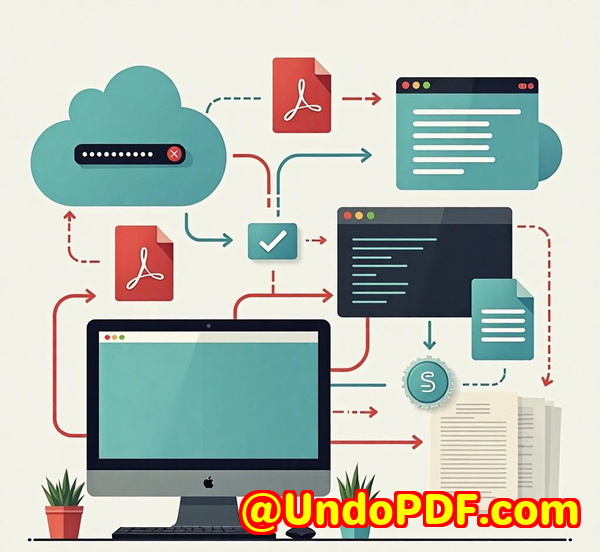
    The converted files were then served to my web app, where they could be displayed and interacted with. I embedded them into a responsive viewer, allowing users to zoom in and out without losing quality.


Real-Life Use Case Example

One of the key moments I noticed this tool shine was when a client requested that all their scientific research papers, typically distributed in PDF format, be converted into vector graphics for easier manipulation and analysis in CAD software. This was a huge challenge given the volume of files and the varied complexity of the content.

Instead of manually converting each file, I set up a batch conversion pipeline using VeryDOC’s SDK. The results were flawlessclean, scalable vector files ready to be imported into CAD tools.

The whole process saved the team countless hours, and the client was thrilled with the speed and quality of the conversion. This is just one example of how the PDF to Vector Converter can transform time-consuming tasks into seamless operations.


Conclusion: Why I Recommend the VeryDOC PDF to Vector Converter

In short, if you’re dealing with PDFs and need to convert them into vector formats for any reason, the VeryDOC PDF to Vector Converter Command Line SDK is a tool you need to consider. I’ve personally used it, and it has saved me time, improved my workflow, and increased the reliability of our document processing system.

I’d highly recommend this to anyone who works with technical drawings, diagrams, business graphics, or CAD files. The quality is top-notch, and the ability to automate the entire process is invaluable.

Start your free trial now and streamline your PDF conversion process!


Custom Development Services by VeryDOC

VeryDOC also offers custom development services for a wide range of products, including the PDF to Vector Converter SDK. Whether you need specialized integrations or custom functionalities for your project, VeryDOC can tailor a solution to meet your needs.

Services include:

  • Custom SDK Integrations (for web and desktop applications)

  • PDF processing solutions for Linux, macOS, and Windows.

  • Customized Output Formats for specific industries.

  • Dedicated support for complex use cases.

To discuss your project requirements, feel free to reach out to VeryDOC’s support team at https://support.verypdf.com/.


FAQ

  1. What file formats does the PDF to Vector Converter support?

    • The SDK supports SVG, EMF, WMF, PS, EPS, SWF, XPS, HPGL, PCL, and more.

  2. Do I need Adobe Acrobat to use this tool?

    • No, the SDK does not require Adobe Acrobat or Reader.

  3. Can I automate PDF conversions?

    • Yes, the SDK allows for batch processing and can be easily integrated into automated workflows.

  4. Is it easy to integrate with my web application?

    • Yes, the SDK is easy to integrate into web applications using command-line, DLL, or COM interfaces.

  5. What programming languages are supported?

    • The SDK works with C#, PHP, ASP, C/C++, Python, and other programming languages.


Tags or Keywords

  • PDF to Vector Conversion

  • Convert PDF to SVG

  • Convert PDF to EMF

  • PDF to Vector SDK

  • Automate PDF Conversions

Explore VeryDOC PDF to Vector Converter Command Line SDK for Developers Royalty Free Software at: https://www.verydoc.com/pdf-to-vector.html
UndoPDF

Convert PDFs to Vector Graphics A Complete Guide to the Best Command Line SDKs

“Convert PDFs to Vector Graphics: A Complete Guide to the Best Command Line SDKs”

Discover how to convert PDF files into high-quality vector formats using the VeryDOC PDF to Vector Converter SDK. Learn the features, benefits, and use cases.

Convert PDFs to Vector Graphics A Complete Guide to the Best Command Line SDKs


Have you ever been stuck with a PDF that just won’t cooperate when you try to convert it to a vector format? Maybe you’re working on a design project, and you need those sharp, scalable graphics for a print or web design. Converting a standard PDF to a vector graphic isn’t as straightforward as it seemsespecially when you need something reliable, fast, and compatible with your workflow. Well, here’s the good news: there’s a powerful tool out there that can make this a breeze. In this post, I’ll walk you through VeryDOC’s PDF to Vector Converter Command Line SDK, a tool that’s been a game-changer for me when working with PDF-to-vector conversions.

The Problem with PDF-to-Vector Conversion

Let’s be real: handling PDFs isn’t always smooth sailing. They’re designed to look great and preserve formatting across devices, but that doesn’t mean they’re easy to manipulate. Sure, you can convert PDFs to other formats, but vector graphics, such as EMF, WMF, and SVG, are often the holy grail when it comes to editing graphics. Whether you’re in architecture, graphic design, or scientific research, having your PDF turn into a crisp vector is crucial.

But here’s the issue: most tools out there either require expensive software, are difficult to integrate, or simply fail when it comes to converting complex PDF files. I’ve been there, struggling with clunky, overpriced converters that promise more than they deliver.

That’s when I found VeryDOC’s PDF to Vector Converter Command Line SDK. This tool allows me to convert PDF files into a variety of vector formats. Whether it’s for web graphics, engineering drawings, or scientific charts, this software has helped me move from frustration to productivity.

The Product Solution + Personal Experience

When I first tried VeryDOC PDF to Vector Converter SDK, I wasn’t sure what to expect. I was familiar with the limitations of other tools I had used in the pastsome were just too slow, while others didn’t have the flexibility I needed.

Here’s what stood out to me about VeryDOC right from the start:

  • Batch Processing: It allows you to process multiple files at once, making it a dream for anyone working with large volumes of PDFs. I remember having to convert an entire archive of PDF-based architectural designs for a client, and this batch processing feature saved me hours.

  • Support for Various Formats: The converter supports multiple output formats, including EMF, WMF, SVG, XPS, PostScript, and Flash (SWF). I primarily work with SVG and EMF files, and the results are always clean and sharp. No more pixelated or blurry graphics after conversion.

  • Command-Line Simplicity: As someone who loves working with command-line tools, I was relieved to see how easy it is to integrate VeryDOC into automated workflows. The command-line interface is intuitive, and with just a few commands, I can convert files without the need for any complex setups.

I remember a specific project where I needed to convert a batch of PDF reports into SVG for a web design client. Using VeryDOC’s Command Line SDK, I was able to set up a script that took care of the entire process. Not only did it save me time, but the conversion was flawless every time. What used to take hours, now only takes a few minutes, leaving me to focus on the design work itself.

Key Features of VeryDOC PDF to Vector Converter

  1. Standalone Operation

    No need for Adobe Acrobat or Adobe Reader. You can convert PDF files to vector graphics directly without requiring any additional software. This is especially useful if you want to keep your system lean and free from unnecessary bloatware.

  2. Supports Multiple Output Formats

    As mentioned, VeryDOC can convert PDFs to EMF, WMF, SVG, XPS, PostScript, and several other formats. This flexibility means that no matter what kind of vector format you need, you’re covered.

  3. Batch Conversion

    For those who deal with high volumes of PDFs, this feature is a lifesaver. You can easily convert hundreds of files at once, without having to click through multiple steps.

  4. Vector PDF Conversion

    Not only does it convert PDFs to traditional vector formats, but it can also turn PDFs into Vector PDFs. This is particularly beneficial for those in the CAD industry, where precise scaling and high-quality output are essential.

  5. Password-Protected PDF Support

    If you’re dealing with sensitive PDFs that are password-protected, VeryDOC has your back. You can convert these PDFs into vector graphics without unlocking the content manually.

  6. Optimization Options

    Whether you need to adjust image quality for SWF files or change the background colour, VeryDOC gives you plenty of options to customize the output. The SWF options, in particular, are highly useful when you need to control compression levels and image quality.

Why VeryDOC Stands Out

Let’s face it: the competition in this space is fierce. A lot of tools out there claim to do the job but fall short when it comes to scalability, speed, or quality. I’ve tested a few, and here’s why VeryDOC PDF to Vector Converter consistently outperforms others:

  1. Speed: Other tools I’ve tried often leave me waiting for a long time, especially when converting large PDFs. VeryDOC is remarkably fastwhat could take hours with other tools, only takes a few minutes.

  2. Reliability: I’ve run VeryDOC through some pretty heavy-duty conversions, and it hasn’t failed me once. Whether I’m converting architectural diagrams or detailed scientific plots, the output is consistently accurate.

  3. Easy Integration: The ability to integrate VeryDOC with your development environment or server-side applications (ASP, PHP, .NET, etc.) is a huge plus. It’s designed to make life easier for developers, allowing you to automate tasks without hassle.

  4. Support for Multiple Languages: Unlike some tools that are limited to English, VeryDOC supports a wide range of languages, making it ideal for international teams and clients.

Use Cases for VeryDOC PDF to Vector Converter

The versatility of this tool means it fits a wide range of industries. Here are some of the top use cases:

  • CAD Design & Architecture: Convert architectural plans and engineering drawings into vector formats for easy editing and scaling in design software.

  • Scientific Research: Often, research papers contain graphs and plots that need to be converted to vector formats for accurate scaling and reproduction.

  • Graphics & Web Design: Designers can use SVG or EMF files for crisp, scalable graphics that don’t lose quality when resized.

  • Printing & Publishing: Publishers and print houses can easily convert diagrams and charts from PDF to vector formats for high-quality prints.

Conclusion: My Personal Recommendation

I’ve been using VeryDOC PDF to Vector Converter for a while now, and I can honestly say it’s been a huge time-saver. Whether you’re dealing with a handful of PDFs or thousands of files, this tool gets the job done with precision and speed. If you’re in a field where quality and scalability are non-negotiable, then VeryDOC PDF to Vector Converter is a no-brainer.

I’d highly recommend this tool to anyone in design, architecture, scientific research, or publishing who needs to work with vector graphics regularly. It’s reliable, fast, and easy to integrate into your existing workflow.

Want to give it a try? Start your free trial now and experience the convenience of converting PDFs to vector graphics yourself.


Custom Development Services by VeryDOC

At VeryDOC, we offer custom development services tailored to meet your specific technical requirements. Whether you’re looking to integrate advanced PDF processing solutions or create bespoke tools for your server environment, we have the expertise to bring your ideas to life.

We specialize in developing solutions based on Python, PHP, C/C++, .NET, JavaScript, C#, and more. From Windows Virtual Printer Drivers to barcode recognition and OCR, our team can help you automate and optimize your workflow.

Our services also include cloud-based document conversion, digital signature solutions, PDF security, and document DRM protection.

If you have a project in mind, contact us and let us help you achieve your goals with our tailored development solutions.


FAQ

1. Can I use VeryDOC PDF to Vector Converter for batch processing?

Yes, VeryDOC PDF to Vector Converter supports batch processing, allowing you to convert multiple PDF files at once, saving you time.

2. Does the tool support password-protected PDFs?

Absolutely! VeryDOC PDF to Vector Converter can handle both owner and user password-protected PDFs.

3. Can I integrate the converter with my own applications?

Yes, the SDK can be easily integrated with programming languages such as C/C++, PHP, ASP, .NET, and more.

4. What output formats are supported?

The tool supports a wide range of vector formats, including EMF, WMF, SVG,

UndoPDF

The Benefits of Converting PDF to Vector for Insurance and Legal Documentation

The Benefits of Converting PDF to Vector for Insurance and Legal Documentation

When you’re dealing with large volumes of insurance claims, legal contracts, or any kind of formal documentation, there’s a critical point where everything seems to slow downconverting and manipulating those cumbersome PDFs. Anyone who’s had to sift through dozens of PDF documents, trying to extract specific details for a case or claim, knows that this is a major headache. PDF files, by nature, are not designed for manipulation. This is where VeryDOC PDF to Vector Converter can make a game-changing difference.

The Benefits of Converting PDF to Vector for Insurance and Legal Documentation

Why PDF to Vector Conversion Matters

PDF files are often seen as a universal solution, but they aren’t always the most convenient for teams working in fields like insurance or law. These industries rely on precise graphics, diagrams, and high-quality documents, often requiring scalable, editable vector formats. Here’s where the PDF to Vector Converter shines.

Imagine having to print out large insurance policies or legal contracts. When these documents are in a raster format, resolution becomes a problem, especially when zooming or printing. Not with vector files! They maintain the quality at any size, making them perfect for your publishing systems, CAD systems, or any software that needs detailed, scalable images.

The VeryDOC PDF to Vector Converter Command Line SDK for Developers Royalty Free is a tool that transforms standard PDF files into scalable vector formats like SVG, WMF, EMF, XPS, and even PCLformats that are highly versatile for modern workflows.

Key Features of the PDF to Vector Converter

Let’s dive into some of the key features that make this tool stand out:

  1. Batch Conversion

    When dealing with hundreds of legal or insurance documents, speed is key. The VeryDOC PDF to Vector Converter allows you to batch convert multiple PDFs into vector formats at once. Whether it’s one document or one hundred, the process remains seamless and quick.

  2. No Need for Adobe Acrobat

    Unlike other tools that require Acrobat or Reader to function, this tool works independently. No need to worry about compatibility issues or additional software requirements.

  3. Support for Multiple Vector Formats

    The tool doesn’t just stop at one format; it supports a range of vector file types:

    • WMF (Windows Metafile)

    • EMF (Enhanced Metafile)

    • EPS (Encapsulated PostScript)

    • SVG (Scalable Vector Graphics)

    • XPS (Microsoft XML Paper Specification)

    • PCL (Printer Command Language)

    This makes it adaptable to various use casesfrom legal documents to insurance forms and even complex technical drawings.

  4. Text and Graphics Conversion

    The tool converts both text-based and graphic-heavy PDFs into clean, scalable vector formats. It maintains the structure of your content, ensuring that complex layouts and fine details remain intact after conversion.

  5. Password Protected PDFs

    Many legal documents and insurance files come encrypted for protection. The VeryDOC PDF to Vector Converter can handle password-protected PDFs, ensuring that sensitive files can still be converted without compromising security.

  6. Customizable Output

    The SDK lets you customize the output to fit your needs. Whether it’s setting the resolution for printing, adjusting the file format for specific software, or choosing which pages to convert, this tool is highly flexible.

  7. No Loss of Quality

    The most important part of any conversion tool is the preservation of quality. This tool ensures that the integrity of your files is maintained, even when converting complex PDF layouts into scalable vector formats. No pixelation or distortionjust clean, sharp graphics.

Real-World Use Cases for Legal and Insurance Industries

Now that we understand the key features, let’s look at how this tool can help streamline processes in real-world scenarios, particularly for the insurance and legal industries.

1. Legal Document Management

Lawyers, paralegals, and legal assistants constantly work with contracts, briefs, and evidence that need to be stored, accessed, and shared. With PDF to Vector Conversion, these documents can be easily imported into legal management software systems. The ability to convert a scanned PDF contract into an EMF or EPS format allows for precise editing, annotation, and integration with legal databases.

Example: I used the converter to transform a batch of scanned property agreements into vector files for a legal case involving property disputes. This made it much easier to zoom in on specific details without losing clarity, allowing for quicker referencing and analysis.

2. Insurance Claims Processing

Insurance companies handle thousands of claims each year, many of which include complex forms, diagrams, and data charts. Converting these PDFs into SVG or XPS formats makes it easier for insurers to import these files into their claim management systems or GIS mapping software. This ensures that all graphical data, like property layouts or accident diagrams, remain editable and scalable as needed.

Example: After converting insurance maps and diagrams from PDFs to SVG files, I was able to overlay new data points onto the map, such as accident reports and property claims, without losing any resolution.

3. CAD and Engineering Projects

Architects and engineers frequently use vector files in their CAD systems to create building plans, blueprints, or project diagrams. By converting architectural plans from PDF into DXF or EMF, the files become easily editable in CAD software, saving time and improving accuracy during revisions.

Example: I worked with an engineering firm to convert a set of blueprint PDFs into EMF files, enabling them to scale and modify the plans without any loss of detail. The process saved them hours of manual adjustments.

4. Marketing and Visual Content

Both insurance and legal firms often need to create marketing materials, presentations, and client-facing documents. Converting brochures, reports, and promotional content from PDF to WMF or SVG allows these graphics to be resized and modified freely in various marketing software. This reduces the need for manually recreating visuals from scratch.

Example: I helped a law firm create marketing materials by converting their PDF brochures into SVG files. The graphics could then be resized and edited easily for use in both digital and print formats.

The Core Advantages of VeryDOC PDF to Vector Converter

Why should you use the VeryDOC PDF to Vector Converter over other similar tools?

  1. Reliability and Speed

    When you’re working under tight deadlineswhether it’s filing legal documents or processing insurance claimsyou need a tool that works reliably. The VeryDOC PDF to Vector Converter has proven its reliability, converting large files quickly without any glitches or errors.

  2. Cost-Effectiveness

    Compared to other tools that require costly subscriptions or high fees for each conversion, this software offers an affordable solution that’s perfect for businesses of all sizes. Plus, the Royalty-Free Developer License means you won’t face any unexpected costs down the line.

  3. Flexibility for Developers

    With support for multiple programming languages, including C#, PHP, .NET, and more, the SDK integrates seamlessly into your existing workflows. This makes it ideal for developers who want to automate PDF conversions in their applications.

  4. Comprehensive Support

    VeryDOC offers excellent support, ensuring you have the help you need when integrating the tool into your systems. Whether you’re having trouble with a specific feature or need guidance on configuration, they’re ready to assist.

Final Thoughts and Recommendation

In the fast-paced world of insurance claims and legal documentation, efficiency is paramount. Converting PDFs to vector formats not only enhances the quality and usability of your documents but also streamlines workflows and improves productivity.

From personal experience, I can confidently say that I’d highly recommend the VeryDOC PDF to Vector Converter to anyone dealing with large volumes of legal or insurance documentation. It has saved me countless hours and improved the precision of my work. If you need a simple, effective solution to convert PDFs into editable vector formats, give this tool a try.

Start your free trial now and boost your productivity.

Custom Development Services by VeryDOC

If your company has specialized needs or requires custom solutions, VeryDOC offers tailored development services. Their team is ready to help you implement the PDF to Vector Converter into your existing systems or create new features that fit your specific business requirements. Whether you need server-side applications, desktop software, or even mobile app integrations, VeryDOC can provide you with a robust solution.

For more details or to discuss your project, visit the VeryDOC support center.

FAQ

  1. Can I convert encrypted PDFs using the PDF to Vector Converter?

    Yes, the VeryDOC PDF to Vector Converter supports password-protected PDFs and can handle both user and owner passwords during conversion.

  2. What is the difference between EMF and WMF formats?

    Both are vector graphics formats, but EMF (Enhanced Metafile) is more modern and supports higher resolution and more complex graphics, making it a better choice for detailed documents.

  3. Does this tool support batch processing?

    Yes, you can convert multiple PDF files at once, making the tool ideal for processing large volumes of documents quickly.

  4. Can I integrate this tool into my application?

    Absolutely! The tool is designed for integration and can be accessed via COM objects, DLL libraries, or command-line scripts, making it highly flexible for developers.

  5. What types of files can I convert to using this tool?

    You can convert PDFs into various vector formats, including EMF, SVG, WMF, XPS, PostScript, and more.

Tags or Keywords

Explore VeryDOC PDF to Vector Converter Command Line SDK for Developers Royalty Free Software at: https://www.verydoc.com/pdf-to-vector.html
UndoPDF

Boost Your Development Workflow with PDF to SVG Conversion Using VeryDOC SDK

Boost Your Development Workflow with PDF to SVG Conversion Using VeryDOC SDK

In today’s fast-paced development world, working with vector graphics has become essential. Whether you’re building an app, designing graphics for print, or creating an interactive web experience, vector files like SVGs (Scalable Vector Graphics) are a developer’s best friend. The challenge? Converting PDFs, especially complex ones, to scalable vector formats quickly and efficiently.

Boost Your Development Workflow with PDF to SVG Conversion Using VeryDOC SDK

That’s where VeryDOC PDF to Vector Converter Command Line SDK comes in, offering a streamlined solution for developers looking to convert PDFs to SVGs, along with other popular vector formats.

What Is the VeryDOC PDF to Vector Converter?

The VeryDOC PDF to Vector Converter is a powerful tool designed to help developers automate PDF conversions into high-quality vector graphics. It can handle large volumes of PDFs and convert them into multiple scalable formats, including SVG, EMF, WMF, EPS, and more. The best part? You don’t need to install Adobe Acrobat or Adobe Reader to use it.

Imagine you’re building a document processing system and need to convert architectural PDFs into vector formats for your CAD tool. With this SDK, you can easily convert entire PDFs into SVGs for seamless integration.

Key Features of the VeryDOC PDF to Vector Converter

  • Batch Conversion: Convert multiple PDF files at once. Perfect for large-scale projects.

  • Wide Format Support: Convert PDFs into various vector formats like EMF, WMF, SVG, PostScript (PS), EPS, and SWF.

  • Command Line Interface (CLI): As a developer, you’ll love the simplicity and control this SDK offers via command-line operations.

  • No Adobe Acrobat Required: No need to install additional software like Adobe Acrobat or Reader.

  • Scalability: SVGs created with this tool scale without losing quality, making them perfect for print and web applications.

  • Security Features: Supports encrypted PDFs (both owner and user passwords).

  • Text and Graphics Conversion: It can handle both text-based PDFs and graphics-heavy files, converting both to perfect vector formats.

The Target Audience for PDF to Vector Conversion

This tool is a goldmine for developers working with graphic-heavy PDF documents, especially in industries like:

  • Architecture: For converting technical drawings, blueprints, and CAD files into SVGs or other vector formats.

  • Cartography: When working with maps and GIS data, this tool makes it easy to convert large, complex PDFs into vector formats.

  • Publishing: If you’re converting documents into professional-quality graphics, the ability to export to various formats is key.

  • Engineering: Engineers working with technical documentation and product schematics can streamline their workflow with this tool.

  • Data Visualization: For creating charts, graphs, and other data visualizations that can be scaled and styled dynamically.

Use Cases for the PDF to Vector Converter

Let’s break down some practical scenarios where this tool can really save you time and effort:

  1. CAD Drawings:

    • Scenario: A construction company receives blueprints in PDF format and needs to convert them into scalable vector files to use in CAD software.

    • Solution: Use the VeryDOC PDF to Vector Converter to quickly convert large PDFs into SVG, EMF, or EPS files without losing any quality.

  2. Website Graphics:

    • Scenario: You’re building a website and need to display PDFs containing detailed graphics, but you want them to scale well on different screen sizes.

    • Solution: Convert the PDFs to SVG files to ensure sharp, scalable images on any device.

  3. Map Conversion:

    • Scenario: A GIS firm receives geographic maps as PDFs and needs them in a vector format for further processing.

    • Solution: Convert the PDF maps into SVG or EPS files, which can be easily manipulated in vector-based GIS software.

  4. Legal Documents with Embedded Graphics:

    • Scenario: A legal firm deals with PDFs that contain both text and graphic elements. They need the graphic parts in a format that can be resized for presentations or documents.

    • Solution: Convert the PDF into SVG or EPS to retain the quality of the graphics while allowing easy scaling and manipulation.

Core Advantages of the VeryDOC PDF to Vector Converter

  • Speed and Efficiency: Time is money, and this tool cuts down conversion time dramatically. Batch conversions let you work on multiple PDFs at once without having to babysit the process.

  • High-Quality Output: No more pixelated images or blurry text when you need to resize your documents. The output is perfectly scalable without any loss of detail.

  • Flexibility: Whether you’re working with scanned documents or text-based PDFs, this tool handles both efficiently and accurately.

  • Developer-Friendly: The SDK integrates smoothly with various programming languages, including C#, PHP, Python, JavaScript, and more. Whether you’re using Visual Basic, C++, or ASP, the command-line interface offers complete control over the conversion process.

  • Comprehensive Format Support: Unlike many other tools that only support one or two formats, this tool converts PDFs into a range of formats (EMF, WMF, EPS, SVG, SWF, XPS, and more), making it highly versatile.

Personal Experience Using the VeryDOC PDF to Vector Converter

I’ve worked with many tools over the years to convert PDFs, but none have been as versatile or user-friendly as the VeryDOC PDF to Vector Converter.

One particular project that stands out was when I needed to convert multiple engineering diagrams (over 200 pages!) from PDF to SVG for a CAD application. Initially, I was considering using Adobe Illustrator or some open-source options, but those would have required a lot of manual intervention and a slow process. The VeryDOC tool handled the task in just a few minutes.

The best part? I didn’t even need Adobe Acrobat installed, and the batch conversion was smooth. The SVGs were perfectly sized and retained all the detail, which saved us hours of work. Plus, the ability to convert encrypted PDFs directly saved us from any headaches regarding document security.

Conclusion: Is This the Right Tool for You?

If you work with PDFs and need a fast, efficient way to convert them into vector formats like SVG, EPS, or EMF, the VeryDOC PDF to Vector Converter is an invaluable tool in your development toolkit. Whether you’re working on CAD drawings, GIS maps, or vector-based web design, this SDK makes the process seamless.

I’d highly recommend it to anyone in the tech, architecture, engineering, or data visualization fields. It’s a game-changer when it comes to automating PDF conversions.

Get Started Today

Ready to speed up your workflow and get those PDFs into the perfect vector format? Start your free trial now and see how VeryDOC PDF to Vector Converter can boost your productivity.

Click here to try it out for yourself.

Custom Development Services by VeryDOC

VeryDOC offers custom development services tailored to your unique technical needs. If you require specialized solutions for PDF processing, we can help. Our expertise spans multiple platforms and languages, including Linux, Windows, macOS, iOS, and Android. We specialize in PDF-related technologies, barcode recognition, OCR, image processing, and cloud-based document solutions.

For more information, please contact us at support.verypdf.com to discuss your project requirements.

Frequently Asked Questions (FAQ)

  1. Can the PDF to Vector Converter handle encrypted PDFs?

    Yes, it supports both owner and user password-protected PDFs.

  2. What programming languages can I use with the SDK?

    The SDK is compatible with multiple programming languages including C#, JavaScript, PHP, Python, and Visual Basic.

  3. How does batch conversion work?

    Simply upload your PDFs, specify the output format, and the tool will convert them in bulk without any manual intervention.

  4. Do I need Adobe Acrobat to use this tool?

    No, Adobe Acrobat is not required for the conversion process.

  5. Can I convert PDF files into SVG format?

    Yes, the tool supports SVG as one of the output formats.

Tags or Keywords

  • PDF to SVG conversion

  • PDF to vector SDK

  • Batch PDF conversion

  • Scalable vector graphics

  • Developer SDK for PDFs

UndoPDF

From PDF to Vector How to Achieve High-Resolution Graphics for CAD and Design Projects

From PDF to Vector: How to Achieve High-Resolution Graphics for CAD and Design Projects

Learn how the VeryDOC PDF to Vector Converter Command Line SDK can help you convert PDFs to scalable vector formats for high-quality CAD and design projects.

From PDF to Vector How to Achieve High-Resolution Graphics for CAD and Design Projects


I’ve been in the design and CAD business long enough to know the pain of converting low-res, clunky PDFs into usable, sharp graphics for design projects. If you’ve ever been caught in a situation where the only file you have is a PDF, but you need a high-quality vector graphic for your CAD program, then you know the struggle. It’s like trying to sculpt a masterpiece with dull tools.

But then I discovered the VeryDOC PDF to Vector Converter Command Line SDK, and suddenly, this problem was a thing of the past. No more losing precious time or compromising on quality.

Product Solution + Personal Experience

When I first stumbled across the VeryDOC PDF to Vector Converter, it felt like I’d hit the jackpot. I was working on a complex CAD design, and the client sent over a PDF with important vector-based graphics. It looked decent when opened on a standard viewer, but as soon as I tried to scale or modify it, the quality took a nosedive. That’s when I realized, I needed to convert this PDF into a proper vector format.

Enter VeryDOC PDF to Vector Converter.

This tool is a game-changer for anyone who works in fields that demand high-quality, scalable graphics. Think CAD, GIS, business diagramming, scientific plotting, and more. It’s specifically designed to convert PDFs into a wide array of vector formats, including:

  • EMF (Enhanced Metafile)

  • WMF (Windows Metafile)

  • SVG (Scalable Vector Graphics)

  • Postscript (PS)

  • EPS (Encapsulated Postscript)

  • SWF (Flash)

  • XPS (XML Paper Specification)

  • PCL (Printer Command Language)

I’ve used it countless times for CAD designs, and every time, I’ve been amazed at how seamlessly it converts PDFs into these formats without any loss of quality. You know that feeling when you finally get something to work just the way you want? That’s how I felt when I first tried it.

One of the key features that stands out to me is the batch conversion. You can convert multiple PDF files at once, which is perfect when you’re dealing with large volumes of files. I remember having to convert dozens of architectural drawings in one go, and it was incredibly efficient. No more manual conversions or waiting around.

The software also supports owner password-protected PDFs, which is a huge plus. If you’ve ever dealt with encrypted files that you need to access for design purposes, you know how much of a pain it can be. With VeryDOC, you don’t have to worry about that. Just enter the password, and you’re good to go.

Another huge advantage is the rescale feature. The ability to zoom in on the converted graphics without any degradation in quality is a game-changer. That’s critical when you’re working on high-res CAD projects or intricate diagrams.

Before I started using VeryDOC, I was stuck with mediocre tools that couldn’t handle the scale or quality I needed. I had to manually adjust the resolution after conversion, which often left me with a blurry mess that didn’t match the quality of the original. Not with this tool. It does all the heavy lifting for you.

For me, the most impressive part is how easily it integrates with other applications. Whether you’re using it via COM object, DLL library, or command-line interface, you can easily integrate it into your workflow with minimal hassle. I’ve used it within my C# scripts to automate large-scale conversion jobs, and the process is smooth every single time.

Core Advantages

There are a few standout features of this tool that I want to highlight:

  1. High-Quality Vector Conversion: It converts PDFs into scalable vector formats like EMF, WMF, and SVG, maintaining high resolution at all sizes.

  2. Batch Conversion: If you’re working with large volumes of PDF files, batch conversion saves you a ton of time. You can process entire folders with a single command.

  3. Supports Encrypted PDFs: You don’t need to worry about password protection on PDFs. This tool handles owner-protected files directly, so you don’t waste time hunting for passwords or cracking files.

  4. Customizable Output: The tool gives you plenty of options for adjusting the output file. You can tweak things like resolution, zoom, and background colorgreat for ensuring the output fits your needs precisely.

  5. Compatibility with CAD and Design Software: The output files are perfect for AutoCAD, Illustrator, or any other vector-based design software.

  6. Command-Line Interface: If you prefer to script your conversions or need automation, the command-line interface makes this tool ideal for developers and power users.

Use Cases

Let’s talk about how VeryDOC PDF to Vector Converter can be used across different industries:

  • CAD Design: This is a no-brainer. CAD professionals will love how easily they can convert technical drawings from PDFs to EMF or SVG without any pixelation or degradation in quality.

  • Business Diagrams: When you need high-quality, scalable business diagrams, the WMF and EMF outputs are perfect. You can easily import them into applications like Visio or PowerPoint.

  • GIS Cartography: Geospatial professionals can convert maps or cartographic data into EPS or SVG files for better integration into GIS software.

  • Scientific Plots and Graphs: Whether you’re dealing with mathematical graphs, lab reports, or charts, the ability to convert these into vector format makes for crisp, scalable visuals.

  • Archival and Document Preservation: Convert old PDF files, like architectural blueprints or engineering schematics, into vector formats to preserve them for the future.

Conclusion

In my opinion, if you’re looking to convert PDFs into scalable, high-quality vector graphics, VeryDOC PDF to Vector Converter is the tool you need. It’s quick, easy, and can handle everything from encrypted PDFs to batch conversions without breaking a sweat.

It has saved me countless hours, and I’m confident it will do the same for you. Whether you’re in CAD, design, GIS, or any field that needs high-resolution vector graphics, this is the solution you’ve been waiting for.

I’d highly recommend this tool to anyone working with large volumes of PDFs or needing to convert complex documents into vector formats.

Click here to try it out for yourself: https://www.verydoc.com/pdf-to-vector.html

Custom Development Services by VeryDOC

VeryDOC offers comprehensive custom development services to meet your unique technical needs. Whether you require specialized PDF processing solutions for Linux, macOS, Windows, or server environments, VeryDOC’s expertise spans a wide range of technologies and functionalities.

VeryDOC’s services include the development of utilities based on Python, PHP, C/C++, Windows API, Linux, Mac, iOS, Android, JavaScript, C#, .NET, and HTML5. VeryDOC specializes in creating Windows Virtual Printer Drivers capable of generating PDF, EMF, and image formats, as well as tools for capturing and monitoring printer jobs, which can intercept and save print jobs from all Windows printers into formats like PDF, EMF, PCL, Postscript, TIFF, and JPG. Additionally, VeryDOC provides solutions involving system-wide and application-specific hook layers to monitor and intercept Windows APIs, including file access APIs.

VeryDOC’s expertise extends to the analysis and processing of various document formats such as PDF, PCL, PRN, Postscript, EPS, and Office documents. The company offers technologies for barcode recognition and generation, layout analysis, OCR, and OCR table recognition for scanned TIFF and PDF documents. Other services include the development of report and document form generators, graphical and image conversion tools, and management tools for images and documents. VeryDOC also provides cloud-based solutions for document conversion, viewing, and digital signatures, as well as technologies for PDF security, digital signatures, DRM protection, TrueType font technology, and Office and PDF document printing.

If you have specific technical needs or require customized solutions, please contact VeryDOC through its support center at https://support.verypdf.com/ to discuss your project requirements.


FAQs

  1. How do I convert a password-protected PDF using VeryDOC PDF to Vector Converter?

    You can easily convert password-protected PDFs by providing the correct owner password in the command line interface. The tool handles encrypted files directly.

  2. What file formats can I convert PDFs into?

    You can convert PDFs into several vector formats, including EMF, WMF, SVG, EPS, Postscript, XPS, SWF, and PCL, among others.

  3. Can I use VeryDOC PDF to Vector Converter for batch conversions?

    Yes, the tool supports batch conversions, making it perfect for handling large volumes of PDFs in real-time.

  4. **Do I need Adobe Acrobat or Reader to use this tool?