UndoPDF

Protect Government Documents with Advanced DRM and Encryption in a Free PDF Tool with Offline Mode

Protect Government Documents with Advanced DRM and Encryption in a Free PDF Tool with Offline Mode

Learn how to protect government documents with advanced DRM encryption and offline viewing using VeryPDF DRM Protector. Safeguard your PDFs with ease.
Protect Government Documents with Advanced DRM and Encryption in a Free PDF Tool with Offline Mode


I used to work with PDFs all the time. But managing sensitive government documents? That was a whole different ball game. The thought of unauthorized access or document leakage kept me up at night.

How do you ensure only the right people can access these critical files without them falling into the wrong hands?

After trying multiple methods, I finally stumbled upon VeryPDF DRM Protector, and let me tell you it changed the way I handle PDF security forever. This free online tool offers one of the most advanced digital rights management (DRM) systems I’ve come across, providing robust protection for government PDFs. Here’s why it’s a game-changer for anyone dealing with sensitive documents.


What is VeryPDF DRM Protector?

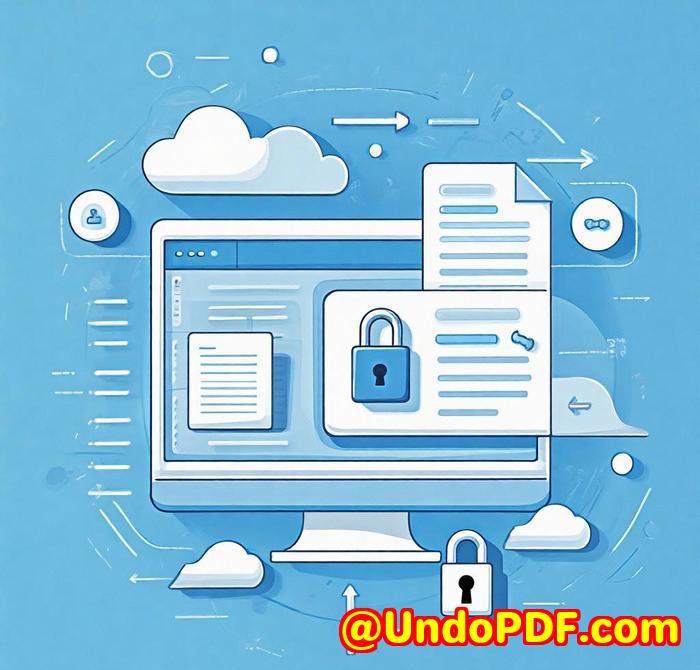
In simple terms, VeryPDF DRM Protector is an online application that protects PDFs from unauthorized access, sharing, printing, and modifying. Whether you’re a government agency, legal team, or any organization handling classified information, this tool has your back. It doesn’t just lock PDFs with passwords it provides multi-layered protection that prevents theft, leakage, or unauthorized distribution.

But what makes it stand out is its ability to protect files offline. You don’t need to upload your documents to some external server to apply security. You can securely protect PDFs right on your local computer, ensuring that your files are never exposed to potential online threats.


Key Features That Will Save You Time and Hassle

  1. Stronger Than Passwords

    Unlike the usual password protection we all use, VeryPDF DRM Protector applies military-grade encryption. This means your PDFs are locked down tight so even if someone gets their hands on the document, they won’t be able to access it without the correct permissions.

  2. Device-Specific Locks

    A standout feature for government departments and sensitive operations: you can lock your PDFs to specific devices like computers, USB drives, or even mobile devices. Imagine distributing a report but ensuring it only opens on a particular laptop or USB stick. That’s the kind of control we need when managing confidential documents.

  3. Dynamic Watermarks

    This is one of my favourite features. As a safeguard against screen grabs and unauthorised copying, VeryPDF applies dynamic watermarks on your PDFs. These watermarks display user-specific information like name, email, or date/time when someone views or prints the document. The watermark’s permanent, so it can’t be erased. This has been a lifesaver in ensuring accountability if someone tries to copy or distribute the document, the watermark makes it clear who’s responsible.

  4. Custom Expiry Dates and Access Limits

    You can set expiration dates for your PDFs, which makes them go dark after a set number of views, prints, or days. Perfect for distributing documents on a need-to-know basis. Once the document expires, it’s locked away. Simple, yet powerful.

  5. Offline Viewing Mode

    With many DRM tools, you have to be online to access protected content. Not with VeryPDF. You can set up PDFs to be viewed offline. This is especially useful for people who need to access documents in remote areas or when working on secure projects without constant internet access.


Real-World Example of How I Used It

A few months back, I had to distribute a series of government policy documents to a select group of officers in remote locations. These documents contained sensitive data, and the last thing I wanted was for them to end up in the wrong hands.

Using VeryPDF DRM Protector, I locked each document to a specific device. I set expiration dates for each file so it would only be accessible for a limited time. Plus, I applied the dynamic watermark feature. That way, if anyone tried to make a copy, there was an obvious trace. The process was fast, and most importantly, it gave me peace of mind knowing that the documents were fully protected.


Why VeryPDF DRM Protector Beats Other Tools

Sure, there are plenty of DRM tools out there, but here’s why I stick with VeryPDF:

  • No Need for Uploading Files: Many other tools require you to upload your PDFs to a server. But with VeryPDF DRM Protector, everything is handled on your local machine. This ensures your sensitive documents never leave your control.

  • Offline Mode: Not all DRM tools let you work offline. For situations where internet access is unreliable or non-existent, VeryPDF’s offline functionality is an absolute win.

  • Customizable Controls: The ability to lock PDFs to specific devices or USB sticks is something other DRM solutions often lack. This feature adds a level of security that’s simply unmatched in many cases.


Conclusion Is This Tool Worth It?

Absolutely. If you handle sensitive or classified documents, VeryPDF DRM Protector should be on your radar. Whether you’re in government, law, or any other field where document security is critical, this tool gives you complete control over your PDFs.

I’d highly recommend it to anyone dealing with confidential files. Protect your PDFs, ensure only authorized users can access them, and prevent leaks all with a few clicks.

Click here to try it out for yourself: https://drm.verypdf.com


Custom Development Services by VeryPDF

VeryPDF also offers comprehensive custom development services to meet your unique technical needs. Whether you require specialized PDF processing solutions for Linux, macOS, Windows, or server environments, VeryPDF’s expertise spans a wide range of technologies and functionalities.

Their services include the development of utilities based on Python, PHP, C/C++, Windows API, Linux, Mac, iOS, Android, JavaScript, C#, .NET, and HTML5. VeryPDF specializes in creating Windows Virtual Printer Drivers capable of generating PDF, EMF, and image formats, as well as tools for capturing and monitoring printer jobs.

For custom PDF processing or any other technical needs, reach out to VeryPDF’s support centre at http://support.verypdf.com/ to discuss your requirements.


FAQ

  1. How does VeryPDF DRM Protector protect PDFs?

    It applies strong encryption and device-specific locks to prevent unauthorized access, sharing, printing, and copying of PDFs.

  2. Can I use VeryPDF DRM Protector offline?

    Yes, you can protect and view your PDFs offline without needing an internet connection.

  3. Can I set expiration dates for protected PDFs?

    Absolutely! You can set expiration dates based on views, prints, days, or a fixed date.

  4. How are watermarks applied to PDFs?

    Watermarks are dynamically generated with user-specific information and are permanent, making them a strong deterrent against unauthorized sharing.

  5. Is this tool free to use?

    Yes, VeryPDF DRM Protector is a free online tool with powerful security features.


Tags or Keywords

  • DRM for government documents

  • Secure PDFs with encryption

  • Offline PDF protection

  • Prevent PDF sharing

  • Dynamic watermarks for PDFs

UndoPDF

How Researchers Can Use Free DRM Tools to Protect Thesis PDFs from Unauthorized Use or Copying

How Researchers Can Use Free DRM Tools to Protect Thesis PDFs from Unauthorized Use or Copying

I remember the panic I felt during my first year of graduate school when I realized how easy it was for someone to steal my thesis. All that hard work, months of research, and countless late nights could easily be copied and distributed without my permission. It was an uncomfortable feeling, knowing that I had no control over who could access or share my work. That’s when I started looking into ways to protect my documents from unauthorized use, especially my thesis PDFs.

How Researchers Can Use Free DRM Tools to Protect Thesis PDFs from Unauthorized Use or Copying

If you’re a researcher or student, you’ve probably faced the same concern. You pour your time and expertise into creating documents that can make or break your academic career. But what happens when your work ends up in the wrong hands? That’s where VeryPDF DRM Protector Free Online Application comes into play, a tool that helps secure your PDF documents with digital rights management (DRM) features that make it virtually impossible for others to copy, share, or modify your work without permission.

What is VeryPDF DRM Protector?

VeryPDF DRM Protector is a free online application that provides Digital Rights Management (DRM) for PDFs. Think of it as a lock for your documents but not just any lock. It’s a lock that you control, allowing you to define exactly who can access your PDF and what they can do with it. This tool works by applying encryption, watermarking, and other security features that prevent unauthorized use.

The best part? You don’t need to download any software or deal with complicated installations. It’s a simple web-based solution that’s quick to set up and easy to use. But what sets it apart from other tools is the level of control it gives you over your PDFs, especially if you’re looking to protect sensitive research work.

Key Features of VeryPDF DRM Protector

Let’s dive into a few of the standout features that make this tool so powerful:

1. Device Locking

You can lock your PDF to specific devices whether that’s a computer, tablet, mobile phone, or even a USB stick. This means that no matter where your file goes, it can only be opened on the devices you specify. No more worrying about someone opening your thesis on an unapproved machine.

2. Dynamic Watermarking

Ever wonder what happens if someone takes a screenshot of your thesis and shares it with others? With dynamic watermarks, you don’t need to worry about that. These watermarks display system and user info (like the name, email address, date, and time), making it easy to track and identify anyone who tries to copy or misuse your work. Plus, these watermarks are permanent and can’t be easily removed, unlike the ones added by basic PDF editors.

3. Print and View Control

The best part about DRM Protector is the ability to control whether your document can be printed, copied, or even viewed offline. If you want to make sure your thesis is only accessible online, you can enforce this rule. Or if you want to limit the number of prints or views, you can set specific limits.

4. Expiry and Revocation

Imagine you’re sharing a draft with a colleague, but you only want them to view it for a limited time. With VeryPDF DRM Protector, you can set expiry dates or even revoke access at any time. If you’re dealing with sensitive research data, this is a huge plus you have the power to make your document inaccessible whenever you need to.

Personal Experience with VeryPDF DRM Protector

I remember having to send my research paper to a group of peers for review. Without a tool like VeryPDF DRM Protector, I was nervous about someone stealing my work. I tried several PDF protection methods, but they were either too complicated or didn’t offer the level of control I needed.

When I found VeryPDF DRM Protector, it was a game-changer. The first thing I loved was how easy it was to use all I had to do was upload my document, set my protection preferences (locking to devices, setting expiry dates), and I was good to go.

One feature that stood out was the dynamic watermarking. I felt much more confident knowing that even if someone tried to screenshot my work, I could track who did it. It gave me peace of mind and took a load off my shoulders.

Why Choose VeryPDF DRM Protector Over Other Tools?

When I compared VeryPDF DRM Protector to other PDF protection tools, a few things stood out:

  • Ease of Use: Unlike other DRM tools that require complex setup or software downloads, VeryPDF DRM Protector is completely web-based and super intuitive. No tech skills required.

  • Granular Control: Many DRM tools are either too rigid or too basic. VeryPDF’s ability to lock PDFs to devices, set expirations, and control printing gave me the flexibility I needed to protect my research.

  • No Server Uploads: With other tools, I worried about uploading my work to a server outside of my control. VeryPDF allows me to secure my PDFs directly on my local machine, which gave me extra confidence in its security.

Conclusion: Why I Recommend VeryPDF DRM Protector

If you’re a researcher, student, or anyone who works with sensitive PDF documents, I can’t recommend VeryPDF DRM Protector enough. It’s a reliable and easy-to-use tool that will give you full control over how your documents are accessed, shared, and protected. No more worrying about unauthorized copying or distribution you can set the rules and enforce them whenever you need to.

Want to try it out for yourself? Click here to check out the free online application: https://drm.verypdf.com.

Custom Development Services by VeryPDF

VeryPDF offers custom development services to meet your specific needs. Whether you’re looking to create specialized PDF processing solutions or develop a custom DRM tool for your business or personal use, VeryPDF can help.

Their expertise spans a range of technologies, from Python, C++, JavaScript, and .NET to custom virtual printer drivers, OCR solutions, and PDF security tools. Whether you’re dealing with cloud-based solutions, PDF encryption, or document management, VeryPDF provides robust, tailored solutions to fit your needs.

If you need a customized solution, contact the team at support.verypdf.com.

FAQ

1. How does DRM protection work for PDFs?

DRM protection for PDFs encrypts the document and controls access, preventing unauthorized users from viewing, copying, or printing the file.

2. Can I revoke access to a protected PDF?

Yes, with VeryPDF DRM Protector, you can revoke access to any PDF at any time, ensuring that no one can view it once you’ve decided to stop sharing it.

3. How long can I set my PDF to expire?

You can set an expiry date for your PDFs or limit access based on the number of views, prints, or days.

4. Does DRM protection work offline?

Yes, you can lock PDFs to specific devices or USB sticks, allowing access without an internet connection, but only on those approved devices.

5. Can the watermark be removed from protected PDFs?

No, the dynamic watermark applied by VeryPDF DRM Protector is permanent and cannot be easily removed.

Tags or Keywords

  • Protect thesis PDF

  • DRM tools for researchers

  • PDF digital rights management

  • Secure PDF distribution

  • Prevent PDF copying

UndoPDF

How AI eliminates manual errors in converting scanned PDFs to structured spreadsheets

How AI eliminates manual errors in converting scanned PDFs to structured spreadsheets

Ditch the copy-paste chaossee how AI in VeryPDF Software cleans up scanned PDFs into reliable spreadsheets with zero manual errors.


Every Monday, I’d dread opening a new batch of scanned reports.

They looked fine at a glanceperfectly aligned rows, clean scansbut the moment I tried to extract those tables into Excel? Absolute nightmare.

How AI eliminates manual errors in converting scanned PDFs to structured spreadsheets

Merged cells where there shouldn’t be any. Half the numbers dropped. Typos all over the place.

And let’s not even talk about manually copying and cleaning that data. You lose hours. Days, sometimes.

That’s when I stumbled across VeryPDF Software.


The painful process before VeryPDF

I work in operationslots of logistics invoices, warehouse reports, stock checklists.

Most of them come as scanned PDFs. Our vendors love paper. I don’t.

Every time we needed that data in a spreadsheet, it was a mess:

  • Manual copy-pasting line-by-line

  • OCR tools that missed half the characters

  • Re-checking formulas every single time

I tried a few big-name tools (not naming names), but they were clunky and expensive. Worsethey couldn’t handle inconsistent scan quality or table layouts.


Then I gave VeryPDF a shot

Honestly, I wasn’t expecting much.

But once I ran a batch of 25 scanned PDF invoices through it? Game-changer.

Here’s how it works:

  • AI-powered OCR: It doesn’t just recognise charactersit understands structure. Columns, rows, merged cellsit maps them properly into an actual spreadsheet.

  • Batch conversion: Upload a folder, and walk away. It’ll churn through every scanned file and drop structured spreadsheets in seconds.

  • Format retention: Currency symbols, date formats, number alignmentsit keeps them all intact. I didn’t have to clean a single cell.


Real talk: where it stood out

1. Tables with inconsistent spacing? Still worked.

Some reports had tables aligned neatly. Others were crooked or scanned sideways. Didn’t matter. The AI adjusted and corrected skewed rows like a pro.

2. Handwritten numbers? Surprisingly accurate.

Some drivers still scribble totals by hand. VeryPDF picked up even those with better accuracy than some “enterprise-grade” OCR tools I’d paid for.

3. Speed & scale

I processed over 300 scanned PDFs in under 10 minutes. It spit out clean Excel filesno crashes, no re-runs.

That alone saved my team hours. Weekly.


Who should use this?

If you’re in finance, legal, logistics, or data entry, and your job involves scanned documents…

…you’re wasting time without this tool.

Especially:

  • Accountants reconciling paper receipts

  • Law firms dealing with scanned contracts

  • Ops teams tracking shipping logs and delivery forms

  • Analysts who need clean data to build reports


Why VeryPDF crushed it for me

  • It just works. I don’t have to adjust settings, tweak zones, or correct mistakes.

  • Accuracy > flashy UI. This isn’t some pretty dashboard with 10 menus. It’s lean, powerful, and built for results.

  • It handles real-world mess. Skewed scans, bad contrast, handwritten textit’s built for the ugly stuff.


Bottom line

If you’re still fixing broken tables in Excel after exporting from scanned PDFs, you’re doing it wrong.

VeryPDF Software solved a problem that was stealing hours from my week.

I’d recommend it to anyone who needs reliable, error-free spreadsheet data from scanned PDFs.

Start your free trial now and boost your productivity: https://www.verypdf.com


Custom Development Services by VeryPDF

Need something tailor-made?

VeryPDF offers full-scale custom development across platformsLinux, Windows, macOS, and mobile.

They build:

  • Command-line tools for PDFs, images, and document workflows

  • Virtual printer drivers to intercept and convert print jobs to PDF, EMF, PCL, and more

  • System-level API hooks to track document access and file events

  • OCR tools with barcode support, table recognition, and layout analysis

  • PDF security, digital signature, and DRM tech

  • Cloud document conversion and processing services

  • TrueType font tech and printing solutions for Office and PDF files

Need to automate a unique workflow?
Talk to their team here: http://support.verypdf.com/


FAQ

Q1: Can VeryPDF handle low-quality or skewed scans?

Yes, its AI automatically corrects skew and compensates for low resolution.

Q2: Does it support batch processing?

Absolutely. You can convert entire folders of scanned PDFs in one go.

Q3: Will it recognise handwritten text?

To a good extent, yes. It’s more accurate than most OCR tools when it comes to numbers and simple handwriting.

Q4: Is the output Excel or CSV?

You can export to both formats depending on your needs.

Q5: Do I need any technical skills to use it?

Nope. It’s command-line simple if you’re into that, but you can also use a GUI depending on the version you pick.


Tags or keywords

  • convert scanned pdf to excel

  • extract tables from scanned documents

  • AI pdf table recognition

  • structured spreadsheet from scanned pdf

  • OCR pdf to spreadsheet


UndoPDF

Automate the conversion of hundreds of legal PDFs to searchable Excel files overnight

Automate the conversion of hundreds of legal PDFs to searchable Excel files overnight

Tired of manually extracting tables from legal PDFs? Here’s how I automated it with VeryPDF and saved hours every week.


Every Thursday night, I used to stay late at the office. Why? To prep the next morning’s report by manually copying data from over 200 scanned legal PDFs into Excel. I couldn’t automate itmost of those files were image-based, full of tables, signatures, and embedded stamps. Even OCR tools struggled. Every solution I tried either messed up the formatting or crashed halfway through.

Automate the conversion of hundreds of legal PDFs to searchable Excel files overnight

I needed something that didn’t choke on scanned documents. Something I could run overnight and trust to be done by morning.

Then I found VeryPDF.


How I discovered VeryPDFand why I stuck with it

After trying five different tools and wasting two weekends, I stumbled across VeryPDF Software while hunting for command-line solutions that didn’t rely on cloud uploads (because, yeah, legal files = confidential). I wasn’t sure what to expect. The website looked no-nonsense, but the feature list checked every box I had.

  • Support for batch conversion

  • OCR that actually works on scanned legal documents

  • The ability to extract tables and export to Excel

  • Command line automation so I could schedule the whole thing overnight

I gave it a shotand I was blown away.


What makes VeryPDF worth it (for me)

Let me break down the features that made a real impact:

Batch conversion that doesn’t choke

I dropped a folder with 248 PDFs into a script and ran it with a single command. Went to bed. Woke up. All the files were cleanly converted into Excel spreadsheets, ready for analysis. No crashes. No stuck files. No half-baked outputs.

Accurate OCReven on messy scans

VeryPDF’s OCR engine isn’t like the other tools I tried that just guess their way through image text. It detected tables, handled multiple columns, and even managed faint print and skewed pages. For scanned legal contracts, this is gold.

Fully scriptable for hands-off automation

This was the game-changer. I wrote a simple batch file, scheduled it with Windows Task Scheduler, and boomlegal PDFs to searchable Excel files every night at 2 a.m., no manual clicks. It just works.


Who needs this? Let me be blunt.

If you work in:

  • Legal operations or litigation support

  • Compliance or auditing

  • Corporate finance teams that analyse contracts

  • Law firms with case archives in scanned format

  • Or you’re a VA or analyst constantly converting PDF data…

You’ll thank yourself for setting this up. There’s no fluff here. It’s fast, flexible, and built for people who don’t have time to baby-sit conversion tools.


Compared to the other tools? No contest.

I’ve used Adobe Acrobat Pro. It’s greatuntil you try feeding it 200 files at once. Then it’s crash city.

Online tools? Not happening. I can’t upload legal docs to the cloud, and even if I could, most of them butcher the formatting.

The only other command-line option I found was complex to set up and required a separate OCR plugin.

VeryPDF gave me everything in one place. Reliable, scriptable, and fast.


Final thoughts: This thing pays for itself

If I had to keep manually converting those files, I’d still be stuck at my desk on Thursday nights. Now I get my time back. No guesswork, no errors, just clean Excel data waiting for me when I walk in.

I’d highly recommend this to anyone who deals with large volumes of scanned PDFs and needs Excel outputsespecially in the legal space.

Click here to try it out for yourself: https://www.verypdf.com


Custom Development Services by VeryPDF

Need something more specialised? VeryPDF also offers custom software development tailored to your exact use case.

Whether you’re running Windows, macOS, Linux, or need mobile solutions, their team can build what you need. They work across Python, PHP, C++, .NET, JavaScript, and more.

They can also create:

  • Virtual printer drivers to capture print jobs to formats like PDF, TIFF, EMF, etc.

  • API hooks for intercepting system-level calls

  • Tools for document conversion, font embedding, OCR, table recognition, barcode processing, and digital signing

  • Solutions for PDF security, document parsing, and cloud-based PDF automation

If you’re looking for something bespoke, get in touch here: http://support.verypdf.com/


FAQ

Q1: Can VeryPDF handle non-scanned PDFs too?

Yes. It works just as well on digitally-created PDFs and gives cleaner outputs because it skips the OCR step.

Q2: Is it secure for handling confidential legal documents?

Absolutely. Everything runs locally. No cloud uploads, no external servers. Your data stays with you.

Q3: Does it work on macOS or Linux?

The command-line tools are available for Windows, but VeryPDF also offers Linux-compatible tools. Reach out for custom versions if needed.

Q4: Can I schedule it to run daily or weekly?

Yes. Use Windows Task Scheduler or any automation tool to trigger it as often as needed.

Q5: What if the layout is complex (multi-column, signatures, stamps)?

That’s where VeryPDF shines. It accurately detects and extracts even complex table layouts and maintains structure.


Tags or keywords

  • automate legal PDF to Excel

  • OCR scanned legal documents

  • convert scanned contracts to Excel

  • batch PDF to Excel overnight

  • extract tables from legal PDFs

UndoPDF

Extract tables from government PDFs for policy analysis and data visualization

Extract Tables from Government PDFs for Policy Analysis and Data Visualization with VeryPDF Software

Learn how to extract tables from government PDFs for policy analysis and data visualisation using VeryPDF Software, and simplify your workflow today.

Extract tables from government PDFs for policy analysis and data visualization


Every Monday morning, I’d find myself tangled in a pile of government PDFspolicy reports, budget summaries, and legal documentseach with tables of critical data that needed extracting for analysis. The problem? Most PDFs weren’t designed for easy data extraction. Copying and pasting tables manually? Forget itcomplete nightmare. That’s when I stumbled across VeryPDF Software, and it completely changed the game.

A Better Way to Work with Government PDFs

You’ve probably been there, right? Faced with tables hidden inside PDFs that need to be pulled out and processed for a report or analysis. Whether you’re working in policy analysis, public administration, or any other field that relies on government documents, having the right tools can save you a tonne of time.

Here’s where VeryPDF Software comes in. It’s a robust solution designed specifically for situations just like thisextracting tables from PDFs, converting them into manageable formats, and making your data usable for everything from analysis to visualisation.


How I Found a Better Solution

At first, I tried a few other tools. They promised to extract data but were either too clunky, too slow, or couldn’t handle complex table structures. But then I tried VeryPDF Softwareand wow, what a difference. Here’s how it worked for me:

  1. Easy Table Extraction

    • I uploaded the PDF, clicked a button, and bamthere was my table, neatly extracted. No more fiddling with Excel and trying to get the columns lined up right.

  2. Support for Complex Layouts

    • Not every government PDF has simple, clean tables. Some have merged cells, varying column widths, and multiple pages of data. VeryPDF handled it all without breaking a sweat. It even kept my data organised, so I didn’t need to spend hours cleaning it up.

  3. Flexible Output Formats

    • Whether I needed the data in Excel, CSV, or just plain text, VeryPDF gave me the freedom to choose the format that worked best for my next steps. It’s a huge time-saver when dealing with large datasets that need to be analysed or visualised in different tools.

Use Cases: Where VeryPDF Shines

The real power of VeryPDF Software comes through in its ability to solve everyday problems for people working with government PDFs. Some of the most common scenarios where this tool is a game-changer include:

  • Policy Analysis: Extracting key tables from policy documents for deeper analysis.

  • Data Visualisation: Pulling financial data from government budget reports and converting it into a format ready for visualisation in tools like Tableau or Power BI.

  • Legal & Regulatory Work: Converting tables from legal documents into editable formats for compliance tracking or litigation support.

  • Public Administration: Organising census data or demographic reports into easy-to-read formats for stakeholders and decision-makers.

Core Advantages of VeryPDF Software

So, what makes VeryPDF Software stand out in a crowded market? A few key features really set it apart:

  • Speed and Accuracy: Unlike other tools I’ve tried, VeryPDF doesn’t waste time. It’s fast and precise, even with complex documents.

  • User-Friendly Interface: You don’t need to be a tech expert to use it. The clean interface means I get in, get my data, and get back to my work without any hassle.

  • Versatility: Whether you’re working with scanned PDFs, editable text-based PDFs, or a mix of both, VeryPDF handles it with ease.

  • Customisation: If you’re working with a unique type of document, VeryPDF allows you to tailor your extraction process to meet your needs.

My Personal Experience

One of the things I appreciate the most is the time-saving aspect. Before, I’d spend hours manually extracting data from tables, fighting with formatting issues, and dealing with inconsistent results. Now? I simply upload the file, let VeryPDF Software do its thing, and within minutes I have my data ready to analyse. No fuss, no mess.


Conclusion: My Go-To Tool for PDF Table Extraction

If you’re in a role where you regularly handle PDFs with data that needs to be extractedwhether you’re analysing policy reports, preparing financial visualisations, or working with government documentsI can’t recommend VeryPDF Software enough. It solves the exact problem I faced: turning complex PDFs into clean, usable data.

So, if you’re ready to save time and make your workflow more efficient, click here to try it out for yourself: VeryPDF Software. Start your free trial now and see how much easier PDF table extraction can be.


Custom Development Services by VeryPDF

If you need a solution tailored to your unique technical needs, VeryPDF has you covered. Their team can develop custom utilities across a wide range of platforms including Windows, macOS, Linux, iOS, Android, and more. Whether you’re dealing with specific PDF processing requirements or need custom tools for converting complex document formats, VeryPDF’s expertise is ready to help.

For more information on custom development services, visit the VeryPDF support centre at http://support.verypdf.com/.


FAQ

  1. How does VeryPDF Software handle scanned PDFs?

    • VeryPDF can extract tables from both scanned and text-based PDFs using its OCR (Optical Character Recognition) technology, ensuring accurate data extraction from scanned images.

  2. Can I extract data from encrypted PDFs?

    • Yes, VeryPDF can work with encrypted PDFs, as long as you have the necessary password to unlock the file.

  3. What output formats are supported?

    • VeryPDF supports several formats including Excel, CSV, and text files, allowing you to work with the data in whatever format best suits your needs.

  4. How long does it take to extract tables from large PDFs?

    • Extraction speed depends on the size and complexity of the PDF. However, VeryPDF is optimised for fast processing, even with large documents.

  5. Can I automate the extraction process?

    • Yes, VeryPDF provides options for batch processing, making it ideal for automating the extraction of tables from multiple PDFs.


Tags or keywords:

  • Extract tables from PDFs

  • Policy analysis tools

  • PDF data extraction software

  • Convert PDFs to Excel

  • Government PDF processing