UndoPDF

A confidential business proposal is shared with a potential partner, but later appears in the hands of competitors, resu

Confidential Business Reports Leaked to Competitors: How to Protect Market Research and Stop PDF Piracy

Protect your business reports and market research from leaks and unauthorized sharing with DRM technology that prevents piracy and revenue loss.
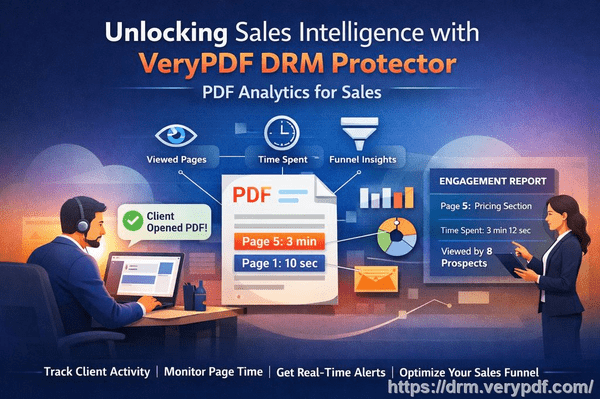
A confidential business proposal is shared with a potential partner, but later appears in the hands of competitors, resu

Last month, I faced a nightmare scenario many business managers dread: a strategic market research report I shared with a potential partner ended up in the hands of our competitor. The result? We lost a major deal, and our reputation took a hit. It was a tangible example of how uncontrolled document sharing can directly affect revenue and client trust. After that experience, I realized that even with NDAs in place, digital documents like PDFs are vulnerable without proper protection.

Many businesses underestimate how easy it is for confidential reports to be copied, forwarded, or converted into editable formats. In my case, someone had simply shared the PDF beyond the intended recipient. Within days, our proprietary research and client-specific strategies were being used by a competitor. This isn’t just a hypothetical riskit’s a visible business loss that can affect contracts, negotiations, and competitive advantage.

One of the biggest pain points is the leakage of market research or strategy documents. These files are often packed with sensitive data, insights, and projections that define a company’s competitive edge. When such content is shared outside the intended circle, the consequences are measurable: lost revenue, weakened client trust, and diminished intellectual property value.

Another common problem is unauthorized copying, printing, or conversion. Even if a document isn’t emailed outside the organization, employees or external partners can copy content into Word, Excel, or image formats, then distribute it without oversight. The financial impact may not be immediate, but over time, this leads to lost opportunities, IP theft, and reputational damage.

Finally, businesses frequently struggle with a loss of control over sensitive data. Once a PDF is out of your hands, there’s no easy way to revoke access, track usage, or prevent misuse. This exposes companies to competitive risks and reduces their ability to enforce confidentiality agreements effectively.

This is where VeryPDF DRM Protector becomes a game-changer. It provides a practical, scenario-driven solution that addresses these exact business pain points. With DRM Protector, you can restrict PDF access to authorized users only, preventing forwarding, printing, copying, or conversion into other formats. I’ve personally seen how this technology stops potential leaks before they happen, giving teams peace of mind while keeping sensitive business reports secure.

For example, I recently used VeryPDF DRM Protector to distribute a client-facing market research report. Instead of sending a standard PDF, we protected it with DRM controls. Only the intended recipients could open the file, and printing or copying was disabled. This not only prevented unauthorized sharing but also made tracking access simple. We could see exactly who opened the report and when, providing accountability and reducing risk.

The anti-piracy benefits are particularly impressive. By preventing PDFs from being converted to Word, Excel, or images, the tool stops others from repurposing or selling proprietary content. In one scenario, a competitor attempted to bypass PDF restrictions, but the DRM controls prevented any unauthorized use. This saved our company potential revenue loss and maintained our competitive advantage.

Implementing VeryPDF DRM Protector is straightforward. Here’s how it works in practice:

  • Restrict access: Assign files to specific users, teams, or departments. Unauthorized users are blocked automatically.

  • Prevent copying, printing, and forwarding: Lock down content to ensure that even legitimate recipients cannot misuse it.

  • Track document usage: Monitor who accessed the file, when, and how often, providing transparency and accountability.

  • Protect market research and proprietary reports: From strategy documents to sensitive business proposals, DRM Protector keeps critical information secure in real operational contexts.

Real-life examples reinforce its value. One company I consulted for shared quarterly business insights with partners through DRM-protected PDFs. Before implementing DRM, they suffered repeated leaks, costing them several clients. After using VeryPDF DRM Protector, leaks stopped completely. Not only did this prevent financial losses, but it also restored trust with partners and internal teams.

For business managers and content creators, the solution is both practical and cost-effective. Implementing DRM protection doesn’t require extensive technical knowledge, and it integrates seamlessly with existing workflows. The immediate effect is visible: sensitive content remains controlled, risk exposure decreases, and businesses retain full ownership of their intellectual property.

Here’s a simple step-by-step guide to protecting your PDFs effectively:

  1. Upload your confidential PDF to VeryPDF DRM Protector.

  2. Set user permissions and access limits for teams, clients, or departments.

  3. Disable printing, copying, and conversion to other formats.

  4. Distribute the secured PDF with confidence, knowing only authorized users can open it.

  5. Monitor access logs to track usage and ensure compliance.

In my experience, the ROI is immediate. By preventing even a single leak, the tool can save thousands in lost contracts, protect market share, and safeguard proprietary insights. It’s a small investment for a massive reduction in risk.

I highly recommend VeryPDF DRM Protector to anyone distributing confidential business documents who wants to avoid costly leaks. It has given me peace of mind knowing our sensitive reports are secure, while simplifying the management of access and compliance.

Try it now and protect your business reports: https://drm.verypdf.com

Start your free trial today and keep your market research secure from leaks or misuse.

Frequently Asked Questions

Q: How can I limit access to confidential business documents to prevent revenue loss?

A: VeryPDF DRM Protector allows you to restrict PDFs to specific users, teams, or departments, ensuring only authorized individuals can access sensitive content.

Q: Can I stop others from copying, printing, or converting my reports into editable formats?

A: Yes. DRM Protector disables printing, copying, and conversion to Word, Excel, or images, preventing unauthorized use or distribution.

Q: How do I track who accessed my business reports and when?

A: The tool provides detailed logs showing who opened a PDF, when, and how often, giving complete accountability for sensitive documents.

Q: Does DRM technology prevent unauthorized sharing of PDFs outside my organization?

A: Absolutely. DRM controls prevent forwarding or sharing with non-authorized users, keeping confidential data contained within approved channels.

Q: How easy is it to securely distribute protected business reports to clients or colleagues without risk?

A: Very easy. You simply set access permissions and share the DRM-protected PDF. Recipients can view content without compromising security, while unauthorized access is blocked.

Q: Can I protect different types of business documents, like strategy plans and market research?

A: Yes. DRM Protector works with all types of sensitive PDFs, including proposals, research reports, financial analyses, and proprietary strategy documents.

Q: Will implementing DRM disrupt our existing workflow?

A: No. VeryPDF DRM Protector integrates seamlessly with your current processes, making it simple to secure documents without adding complexity.

Tags/Keywords

protect business reports, secure market research, prevent PDF piracy, stop unauthorized access, protect confidential PDFs, prevent PDF conversion, secure proprietary documents, protect business data, prevent leaks, control PDF distribution
UndoPDF

VeryPDF DRM Protector Tutorial Add FreeText, Ink, and Shape Annotations to Protect PDF Documents Efficiently

Protect Your Course PDFs and Stop Students Sharing Homework with VeryPDF DRM Protector

Keep your lecture materials secure and prevent unauthorized sharing or PDF piracy with easy DRM protection.

VeryPDF DRM Protector Tutorial Add FreeText, Ink, and Shape Annotations to Protect PDF Documents Efficiently

I remember the moment it hit me: I had spent hours preparing a set of lecture slides for my advanced biology class, only to discover some students had shared the PDF online. Suddenly, my carefully structured course content was circulating freely, and worse, students were submitting copied homework from peers I hadn’t even met. As a professor, this kind of content leakage is frustrating and can undermine both teaching and trust. That’s when I started looking for a reliable way to protect my PDFsand I found VeryPDF DRM Protector.

Students sharing PDFs or assignments online is a common headache. It’s not just about plagiarism; it’s also about losing control of your intellectual property. Many professors I know have faced situations where PDFs were forwarded to unregistered users, printed without permission, or converted into editable formats like Word or Excel, undermining their course structure. And in today’s digital age, these problems only escalate when students share materials via email, chat groups, or cloud storage.

VeryPDF DRM Protector solves these problems by putting control back in your hands. With this tool, you can:

  • Restrict access to specific students or enrolled users only.

  • Prevent printing, copying, forwarding, or removing DRM.

  • Secure lecture slides, homework PDFs, and paid course materials.

  • Track who accesses your files and when.

For example, last semester I uploaded a set of homework PDFs for my graduate students. Using VeryPDF DRM Protector, I restricted access to only registered students in my class. Each student had a unique login, and the PDFs could be viewed but not printed or copied. Not only did this stop any sharing outside the class, but it also meant I didn’t have to worry about students converting my PDFs into Word documents to bypass my homework rules.

The annotation feature in VeryPDF DRM Protector is another game-changer. You can add FreeText, Ink, shapes, or stamps directly to your PDFs. What makes this feature remarkable for educators is that annotations are tied to each user and each protected PDF. So, if I highlight a section for one student, they can see itbut other students won’t. It’s a personalized, interactive experience without sacrificing security.

Here’s how I use PDF annotations in practice:

  • Highlight key concepts: I use the highlighter tool to emphasize critical points in lecture slides. Students can follow along digitally, which is especially helpful in remote learning.

  • Add comments and feedback: With FreeText annotations, I leave guidance or corrections on homework PDFs, all without allowing them to edit the original document.

  • Ink and drawing tools: For subjects like math or chemistry, I can draw diagrams or annotate equations directly on the PDF. This is saved per student, so each gets a personal, secure copy.

  • Stamping and signatures: I use custom stamps for grading, including my initials, date, or feedback comments. This adds a professional touch and maintains auditability.

Activating PDF annotations is straightforward. I just go to my protected PDF list, click “Actions” “Edit Settings,” enable the annotation tools I want in the “Advanced Settings,” and save. Students can then view the PDF with all the interactive annotations enabledbut none of these tools compromise the DRM security.

Beyond annotations, the anti-piracy benefits are substantial. Once a PDF is protected with VeryPDF DRM Protector:

  • Students cannot bypass security by converting PDFs into Word, Excel, or images.

  • Printing is disabled if you choose, so physical copies are controlled.

  • Forwarding or sharing via email or cloud services is blocked.

  • You maintain full control over content distribution, whether for free course material or paid online courses.

I once had a student try to bypass security by opening a protected PDF on multiple devices. Thanks to DRM restrictions, the document refused to open on an unregistered device. It was a small moment, but it saved hours of follow-up and ensured fairness in grading.

Using VeryPDF DRM Protector also streamlines my teaching workflow. Previously, I had to manually check if students submitted original work or shared PDFs. Now, I can confidently distribute homework and lecture slides knowing my content is secure. Plus, the annotation tools make feedback faster and more engaging. I can highlight mistakes, draw diagrams, and leave inline commentsall without creating additional files.

Here’s a simple step-by-step workflow I follow:

  1. Prepare lecture slides or homework PDFs.

  2. Upload to VeryPDF DRM Protector and set user access.

  3. Enable annotation tools such as FreeText, Ink, and stamps.

  4. Share the protected PDFs with students.

  5. Review their progress and leave secure annotations directly in the PDF.

  6. Monitor access logs to ensure no unauthorized viewing occurs.

For online courses, this becomes invaluable. Paid course materials are often targeted by pirates or shared on forums. By using DRM protection, you prevent unauthorized downloads or copying, giving both you and your students confidence that the learning experience remains intact.

I also appreciate how flexible annotations are. If a student revisits a PDF weeks later, their personal notes and highlights are saved, creating a secure and interactive learning experience. This personalization doesn’t compromise securityit actually enhances student engagement while maintaining strict anti-piracy measures.

In short, VeryPDF DRM Protector doesn’t just stop students from sharing homeworkit protects your intellectual property, reduces administrative headaches, and creates a safer, more interactive learning environment. I highly recommend this to anyone distributing PDFs to students.

Try it now and protect your course materials: https://drm.verypdf.com

Start your free trial today and regain control over your PDFs.

FAQs

Q1: How can I limit student access to PDFs?

A1: You can restrict PDFs to specific users or enrolled students only. Each student logs in individually, and access is tied to their account.

Q2: Can students still read PDFs without copying, printing, or converting them?

A2: Yes. VeryPDF DRM Protector allows secure viewing while disabling printing, copying, and format conversion. Students can read but cannot misuse the content.

Q3: How do I track who accessed my PDFs?

A3: The system logs each user’s access, including the time and device used. This allows you to monitor engagement and prevent unauthorized distribution.

Q4: Does this tool prevent PDF piracy and unauthorized sharing?

A4: Absolutely. It blocks printing, copying, forwarding, and conversion to other formats, ensuring your PDFs remain secure.

Q5: How easy is it to distribute protected lecture slides and homework?

A5: Very easy. Upload your PDFs, set user permissions, enable annotation tools if needed, and share. Students receive secure access without compromising DRM protection.

Q6: Can I add annotations for individual students?

A6: Yes. Annotations like FreeText, Ink, shapes, and stamps are per-user and per-PDF, allowing personalized feedback while keeping the original document secure.

Q7: Is it mobile-friendly for students accessing PDFs on tablets or phones?

A7: Yes. Annotation and viewing tools are fully supported on touch devices, ensuring students can interact with PDFs securely from any device.

Tags/Keywords:

protect course PDFs, prevent PDF piracy, stop students sharing homework, secure lecture materials, prevent DRM removal, anti-conversion PDF DRM, secure homework PDFs, PDF annotation for teachers, protect online course materials, stop unauthorized PDF sharing

UndoPDF

How to Securely Annotate PDF Files for Legal, Accounting, and Medical Teams Using VeryPDF DRM Protector Online

Secure Your Course PDFs and Stop Students Sharing Homework with VeryPDF DRM

I used to dread the moment I uploaded my lecture slides or homework PDFs online. Within days, files I had painstakingly prepared for my students would appear scattered across forums or shared drives. As a professor, I’ve faced the frustration of students sharing materials, converting PDFs to Word or Excel, and bypassing any rules I tried to set. Losing control over my course content not only affected my intellectual property but also the learning experience I aimed to provide.

How to Securely Annotate PDF Files for Legal, Accounting, and Medical Teams Using VeryPDF DRM Protector Online

That’s when I discovered VeryPDF DRM Protector. This tool transformed the way I handle digital course materials, giving me peace of mind while keeping my PDFs secure and fully under my control.

One of the biggest challenges we educators face is students sharing PDFs online. Whether it’s homework, lecture slides, or paid course materials, unauthorized distribution is rampant. Traditional PDF protections are often easy to bypassstudents can print, copy, or convert files to other formats, defeating any access restrictions. This not only jeopardizes your content but can undermine grading integrity and the overall learning environment.

Another pain point is the loss of control over annotations and interactive content. As someone who encourages students to highlight, comment, or draw on their PDFs, I needed a solution that allowed annotation while keeping the document protected. Some systems either lock PDFs completely or make annotation impossible, which frustrates both students and instructors.

VeryPDF DRM Protector solves these problems elegantly. It lets me restrict PDF access to specific usersonly enrolled students can open the files. I can prevent printing, copying, forwarding, or DRM removal, which means my course slides and homework PDFs are safe from piracy or misuse. Students can interact with the documents through annotations, but everything stays contained within the protected environment.

Here’s how it works in a typical classroom scenario:

  • Controlled Access: I upload my lecture slides to VeryPDF DRM Protector and set permissions so only registered students can view them. Even if a student tries to share the PDF, others can’t open it without authentication.

  • Preventing Copy and Conversion: The DRM system blocks printing, text copying, and file conversion. This stops students from bypassing security by turning a PDF into a Word document or screenshotting content.

  • Secure Annotations: Using the PDF Annotate feature, students can highlight text, write notes, or even draw directly on the PDF. All annotations are saved per user and can be exported, but they cannot compromise the security of the original file.

  • Flexible Annotation Tools: The system supports freehand drawing, stamps, signatures, text notes, and shapes like arrows and circles. For example, when a student submits a homework draft with annotations, I can review it directly in the secure environment, saving time and maintaining control.

I remember a semester when a student tried to distribute a homework PDF outside our course platform. Thanks to DRM Protector, the file remained inaccessible to anyone not enrolled, and the annotations remained tied to the student’s account. It not only prevented potential content leakage but also simplified my workflow for grading and feedback.

For educators distributing paid course materials online, DRM protection is a game-changer. It allows content to be shared securely without worrying about piracy or DRM removal. I can safely offer digital lecture slides, homework PDFs, or even e-textbooks without fearing they’ll be copied, converted, or shared illegally.

Activating PDF annotations is simple:

  1. Open the protected PDF files via your VeryPDF DRM dashboard.

  2. Click “Actions” -> “Edit Settings” on the file.

  3. In “Advanced Settings,” enable the annotation tools you want your students to use, such as highlights, free text, ink, and stamps.

  4. Save the settings and return to the book list.

  5. Click “Enhanced Web Viewer” to let students view and annotate the PDFs online securely.

With this setup, students can interact with content safely, and I maintain full control. I’ve also found that annotations can be exported or imported, making it easy to track progress and provide feedback efficiently. The system even supports mobile devices, so students can annotate on tablets or phones without compromising security.

From a practical perspective, the benefits are clear:

  • Prevent PDF piracy: Students can’t share, convert, or print protected files.

  • Maintain course integrity: Content stays secure, supporting fair grading and controlled access.

  • Streamline teaching workflow: Secure annotations and easy tracking reduce administrative overhead.

  • Flexible content delivery: Supports lecture slides, homework PDFs, and paid course materials.

  • User-friendly interface: Even less tech-savvy students can annotate, highlight, or add notes without difficulty.

I highly recommend VeryPDF DRM Protector to anyone distributing PDFs to students. It’s not just about securityit’s about peace of mind and enabling better teaching practices. Protecting course materials shouldn’t be a headache, and with this tool, it isn’t.

Try it now and protect your course materials: https://drm.verypdf.com

Start your free trial today and regain control over your PDFs.

FAQs

Q: How can I limit student access to PDFs?

A: VeryPDF DRM Protector allows you to restrict access to enrolled students only. Unauthorized users cannot open the files.

Q: Can students still read PDFs without copying, printing, or converting?

A: Yes. Students can view and annotate PDFs securely in the browser, but printing, copying, or converting is blocked.

Q: How can I track who accessed the files?

A: The system logs user activity per protected PDF, so you can see who viewed or annotated the files.

Q: Does it prevent PDF piracy and unauthorized sharing?

A: Absolutely. DRM protection ensures that shared files are inaccessible to anyone not authorized.

Q: How easy is it to distribute protected lecture slides and homework?

A: Very easy. Upload your PDFs, set permissions, enable annotation tools, and share links with students.

Q: Can annotations be saved and reused?

A: Yes. Each user’s annotations are saved to their account and can be reused whenever they view the PDF again.

Q: Does it work on mobile devices?

A: Yes. Students can annotate PDFs securely on tablets and smartphones.

Tags/Keywords

protect course PDFs, prevent PDF piracy, stop students sharing homework, secure lecture materials, prevent DRM removal, anti-conversion PDF DRM, digital course security, PDF annotations, secure homework PDFs, online education tools

UndoPDF

VeryPDF DRM Protector Tutorial Mobile-Friendly PDF Annotation Tools for Adding FreeText, Stamps, Shapes, and Signatures

How I Secured My Course PDFs and Stopped Students from Sharing Homework

Protect your course PDFs and stop students from sharing or converting materials with DRM to keep lecture slides and homework safe.

VeryPDF DRM Protector Tutorial Mobile-Friendly PDF Annotation Tools for Adding FreeText, Stamps, Shapes, and Signatures

Last semester, I faced a frustration many professors know all too well. I had spent weeks preparing lecture slides and creating detailed homework PDFs for my students, only to discover that copies of my materials were circulating in online student groups. Some were even converting the PDFs to Word documents, editing them, and sharing the solutions freely. I felt like all my effort and intellectual property were slipping out of my control. That’s when I decided to find a solution that could let me teach efficiently while protecting my content: VeryPDF DRM Protector.

The first problem I often encounter is students sharing PDFs online. Even if the sharing isn’t malicious, once a PDF leaves my control, there’s no way to track it. Assignments meant for one class end up with students in another. Lecture slides, homework sheets, and even paid course materials can spread quickly.

The second issue is unauthorized printing or copying. Some students like to make multiple physical copies or paste content into Word, Excel, or other formats. Not only does this reduce the value of the material, but it also compromises my ability to control academic integrity.

Finally, there’s the worry about losing control over paid or restricted content. For online courses, this is especially critical. If a PDF leaks, students who haven’t paid can access premium materials for free, undermining my course’s value and potentially my reputation.

Enter VeryPDF DRM Protectora tool that changed how I distribute and manage PDFs. At first, I was skeptical. Could software really stop students from copying, printing, or sharing? But after setting it up, I was amazed at how straightforward it was to regain control. Here’s how it solved my problems:

  • Restricting PDF access to specific students: Each PDF is locked so only enrolled students can open it. Even if someone tries to forward it, they won’t be able to access the content.

  • Preventing printing, copying, or conversion: DRM Protector ensures that PDFs cannot be printed, copied, or converted to Word, Excel, or images. I finally knew that my materials would stay exactly as I intended.

  • Protecting lecture slides and homework: Every lecture PDF and homework sheet is secured. Even annotations or notes added through the tool are protected per user, so students cannot share their highlights or answers with classmates.

Using DRM Protector also brought anti-piracy benefits I hadn’t anticipated. Hackers and savvy students who might try to bypass PDF security simply can’t. All content remains locked and protected from unauthorized removal. Plus, the tool tracks access, so I know who opened the PDF and when.

A real-life example comes to mind. Last month, I uploaded my semester’s lecture slides and homework PDFs to the class portal using VeryPDF DRM Protector. One student attempted to send a copy to a friend outside the class. The friend received a locked file that was completely inaccessible. Not only did this prevent content leakage, but it also saved me countless hours of follow-ups and damage control.

Another scenario involved a student trying to print homework and annotate it manually before scanning it back to me. DRM Protector blocked all printing attempts. Instead, I encouraged students to use the built-in annotation tools. These tools are intuitive, mobile-friendly, and allow students to add FreeText, stamps, shapes, and even signatures directly in the browser. It was a game-changer for online assignments.

Here’s how I set up PDF annotations with VeryPDF DRM Protector in a few simple steps:

  • Open the protected PDF page at VeryPDF DRM Files.

  • Click Actions Edit Settings on the PDF file.

  • In Advanced Settings, enable annotation options like ToolbarButton_editorFreeText, ToolbarButton_editorStamp, and ToolbarButton_SaveAnnotations.

  • Click Save, then return to the book list and select Enhanced Web Viewer.

  • Students can now annotate PDFs with highlights, FreeText, stamps, signatures, shapes, and even draw custom lines. Each annotation is saved per user, ensuring no one else sees their work.

The annotation system supports mobile devices too. Students can use touch screens to highlight text, draw shapes, add signatures, and even upload images. I’ve seen students complete assignments entirely on their tablets without ever needing to print, keeping everything digital and secure.

Here are some practical tips I learned while using VeryPDF DRM Protector:

  • Set per-user annotations: This prevents sharing of highlighted notes or answers.

  • Enable multiple annotation types: Highlighting, FreeText, ink drawings, stamps, and signatures keep students engaged while still protecting content.

  • Encourage digital submissions: By using the annotation tools, students can complete homework without printing, which preserves DRM protection.

  • Monitor access logs: Tracking who opened each PDF helps spot suspicious activity early.

  • Combine with course scheduling: Release PDFs only when needed to reduce temptation for early sharing.

I also appreciated the tool’s simplicity. Unlike some complex DRM software, VeryPDF DRM Protector didn’t require advanced technical skills. I could secure lecture slides, add annotation features, and share PDFs all within a few clicks. It saved me time and headaches.

In short, DRM Protector protects your PDFs against piracy, sharing, and unauthorized conversion. Lecture slides, homework, and paid course materials remain secure, and students engage with content through built-in annotation tools. I now feel confident that my materials are safe, while still being accessible and interactive for my students.

I highly recommend this to anyone distributing PDFs to students. Try it now and protect your course materials: https://drm.verypdf.com

Start your free trial today and regain control over your PDFs.

Frequently Asked Questions

How can I limit student access to PDFs?

You can restrict PDFs to enrolled students only. VeryPDF DRM Protector allows you to set permissions so that only specific users can open the files.

Can students read PDFs without copying, printing, or converting?

Yes. Students can view, annotate, and complete assignments within the protected PDF without the ability to print, copy, or convert the content to other formats.

How do I track who accessed the files?

The software tracks access logs per user, showing who opened each PDF and when, allowing you to monitor usage and spot potential unauthorized activity.

Does it prevent PDF piracy and unauthorized sharing?

Absolutely. The DRM restrictions block forwarding, copying, printing, and converting, so PDFs cannot be shared or pirated by students or external parties.

How easy is it to distribute protected lecture slides and homework?

Very easy. Upload your PDFs to the platform, set permissions, and share the secure links. Students can access the files directly in a browser, including mobile devices.

Can students annotate PDFs while keeping content protected?

Yes. Annotations like FreeText, highlights, stamps, and signatures are saved per user. Students can complete homework digitally without compromising PDF security.

Is the tool mobile-friendly?

Yes. VeryPDF DRM Protector supports touch devices, allowing students to view, annotate, and submit assignments on tablets or smartphones.

Tags/Keywords:

protect course PDFs, prevent PDF piracy, stop students sharing homework, secure lecture materials, prevent DRM removal, anti-conversion PDF DRM, PDF annotation tools, mobile-friendly PDF, secure homework PDFs, control student access

UndoPDF

How to Save and Reuse PDF Annotations for Legal, Accounting, and Research Workflows Without Uploading Files

How to Protect and Reuse PDF Annotations While Keeping Lecture Materials Secure

Keep your course PDFs safe, prevent students from sharing homework, and maintain full control over your lecture materials.

How to Save and Reuse PDF Annotations for Legal, Accounting, and Research Workflows Without Uploading Files

As a professor, there’s nothing more frustrating than discovering that your carefully prepared lecture PDFs have been shared online without your permission. I remember preparing a full set of accounting course slides, complete with annotations and example solutions, only to find them circulating on a student forum. That’s when I realized that traditional PDFs, even when shared privately, are vulnerable. It’s not just about losing control over contentit’s about maintaining academic integrity and ensuring students are actually engaging with your materials rather than redistributing them freely.

Many of us face similar challenges in our classrooms: PDFs of lecture slides, homework, or paid course content can be forwarded, printed, or converted to editable formats without our consent. This can disrupt learning, compromise the value of your materials, and sometimes even harm your reputation as an educator. Fortunately, with tools like VeryPDF DRM Protector, I’ve found a way to securely distribute my PDFs while still allowing annotations and interactive use.

One of the biggest pain points in teaching is students sharing PDFs outside of the class. Imagine sending a homework assignment to your students, only to see it uploaded to a public site the next day. Not only does it defeat the purpose of the assignment, but it can also spread answers before everyone has had a chance to complete the work.

Another issue is unauthorized printing or conversion. Many professors rely on PDFs because they’re considered fixed, secure formats. Yet, without DRM protection, any student can convert them into Word, Excel, or even images, stripping your materials of their intended structure and value. This is especially troublesome for paid courses or research-focused content that is meant to be restricted to enrolled participants.

Finally, the loss of control over your content can become a time-consuming headache. Tracking down where files have gone, sending reminders to remove copies, or updating materials across multiple platforms wastes precious teaching time.

This is where VeryPDF DRM Protector has completely changed my workflow. It’s a practical solution that lets you share your PDF materials safely while maintaining full control over how they’re used. With DRM Protector, I can restrict access to enrolled students only, preventing unauthorized forwarding or sharing. Printing, copying, or converting PDFs is blocked, and even attempts to remove DRM fail.

One of the most useful features for me has been the PDF annotation capabilities. I can annotate lecture slides directly within the protected PDF, using highlights, free text, ink drawings, image stamps, and even custom signatures. What’s more, these annotations are saved per user and per document, so students can make their own notes securely without compromising the original content. When I revisit a PDF for the next semester, all my previous annotations are available and reusable, saving me hours of rework.

Here’s how I use it in my teaching workflow:

  • Protecting lecture slides: Before sharing, I upload PDFs to VeryPDF DRM Protector and set restrictions so only my enrolled students can access them. I enable annotation tools so students can take notes directly in the PDF.

  • Securing homework PDFs: Assignments are distributed with DRM protection. Students can fill in or annotate the work but cannot print, copy, or forward it. This keeps the integrity of assessments intact.

  • Managing paid course content: For online courses, DRM Protector ensures that videos, PDFs, and eBooks are only accessible to subscribers. Any attempt to bypass protections is blocked.

In practical terms, here’s what I do step by step to activate PDF annotations:

  1. Open the protected PDF on the VeryPDF DRM web portal.

  2. Click “Actions” “Edit Settings” for the PDF.

  3. In “Advanced Settings,” enable toolbar options like Highlight, FreeText, Ink, Stamp, and Save Annotations.

  4. Save the settings.

  5. Use the Enhanced Web Viewer to view and annotate the PDF online.

The anti-piracy benefits are clear. DRM Protector prevents students or hackers from bypassing security, and it stops PDFs from being converted to editable formats or printed without permission. I’ve personally avoided multiple situations where PDFs could have been leaked, saving both my time and the integrity of my course. For example, in a law course I taught last year, annotations for case studies were critical. With DRM protection, each student could annotate privately, and I could track engagement without risking the materials being shared outside the classroom.

Another moment that highlighted its value was during an accounting workshop. Students often collaborate heavily, but sharing answers prematurely was a problem. Using VeryPDF DRM Protector, I distributed the exercises securely, allowed annotations, and prevented copying. The result was smoother workshops, fewer integrity issues, and a more engaged classroom.

I also appreciate the flexibility for interactive and visual annotations. Whether it’s highlighting key points, adding sticky notes, or inserting image stamps, students can personalize their learning experience without compromising security. Annotations can even be exported to PDF or Excel for grading or review purposes, which is a huge time saver.

For educators worried about accessibility, DRM Protector supports touch devices, so students using tablets can annotate naturally. The annotation tools include: rectangle, circle, freehand drawing, arrows, cloud lines, text, signatures, and custom stamps. It’s easy to undo, redo, or clear annotations, making the learning experience seamless.

Overall, VeryPDF DRM Protector has simplified my teaching workflow, reduced the risk of content leakage, and allowed me to maintain full control over my materials. I can focus on teaching rather than policing content.

I highly recommend this to anyone distributing PDFs to students. Whether it’s lecture slides, homework, or paid course materials, this tool helps maintain academic integrity, secure your content, and reduce student misuse. Try it now and protect your course materials: https://drm.verypdf.com. Start your free trial today and regain control over your PDFs.

FAQs

Q: How can I limit student access to PDFs?

A: VeryPDF DRM Protector allows you to restrict access to enrolled students or specific users, ensuring only authorized individuals can open your files.

Q: Can students still read PDFs without copying, printing, or converting them?

A: Yes, DRM Protector enables full reading access while blocking printing, copying, forwarding, and conversion, keeping your content secure.

Q: How can I track who accessed my PDFs?

A: You can monitor user access and activity through the DRM portal, giving you insight into engagement and usage.

Q: Does this prevent PDF piracy and unauthorized sharing?

A: Absolutely. DRM Protector prevents students or hackers from bypassing security and stops files from being uploaded or converted to other formats.

Q: How easy is it to distribute protected lecture slides and homework?

A: Very easy. You simply upload your PDFs, configure access permissions, enable annotations, and share links with students.

Q: Can students annotate PDFs safely?

A: Yes, annotations are per user and per PDF, ensuring students can make notes privately without altering the original content.

Q: Does it support touch devices for mobile learning?

A: Yes, annotation tools like highlighting, freehand drawing, and stamps work seamlessly on tablets and touch screens.

Tags/Keywords

protect course PDFs, prevent PDF piracy, stop students sharing homework, secure lecture materials, prevent DRM removal, anti-conversion PDF DRM, PDF annotations for teachers, secure homework distribution, protect lecture slides, digital course content security