UndoPDF

Stop screenshots of corporate PDF strategy documents with DRM and dynamic watermarking

Stop screenshots of corporate PDF strategy documents with DRM and dynamic watermarking

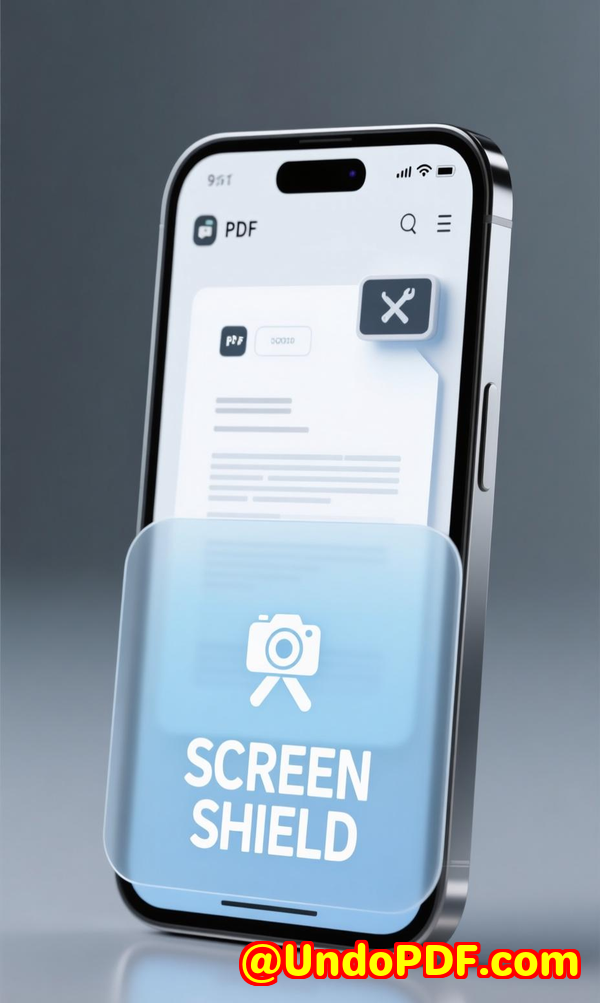
Protect sensitive PDFs from screenshots with VeryPDF DRM Protector and dynamic watermarking, keeping corporate strategy documents secure online.
Stop screenshots of corporate PDF strategy documents with DRM and dynamic watermarking


Every time I shared a critical strategy PDF with colleagues or clients, I felt a twinge of anxiety.

What if someone took a screenshot and leaked the content?

What if confidential numbers ended up in the wrong hands?

This was especially stressful when working with highly sensitive corporate documents, like financial forecasts, intellectual property, or exam materials.

Even password-protected PDFs felt fragile a determined person could still capture every page and stitch it together.

That’s when I stumbled upon VeryPDF DRM Protector with its Screen Shield feature, and honestly, it changed the game for how I handle sensitive PDFs.

This tool doesn’t just protect your files it actively prevents screenshots and adds dynamic watermarks to make leaking your files a nightmare for anyone trying.


Why I Chose VeryPDF DRM Protector

At first, I tried a few other PDF security tools.

Most of them promised encryption and access controls, but when it came to stopping screenshots, they fell short.

Users could still zoom, pan, and capture content easily.

I needed something more proactive a tool that made screenshotting not just inconvenient, but practically impossible.

VeryPDF DRM Protector stood out because of Screen Shield.

It doesn’t just rely on passwords; it dynamically limits what a viewer can see.

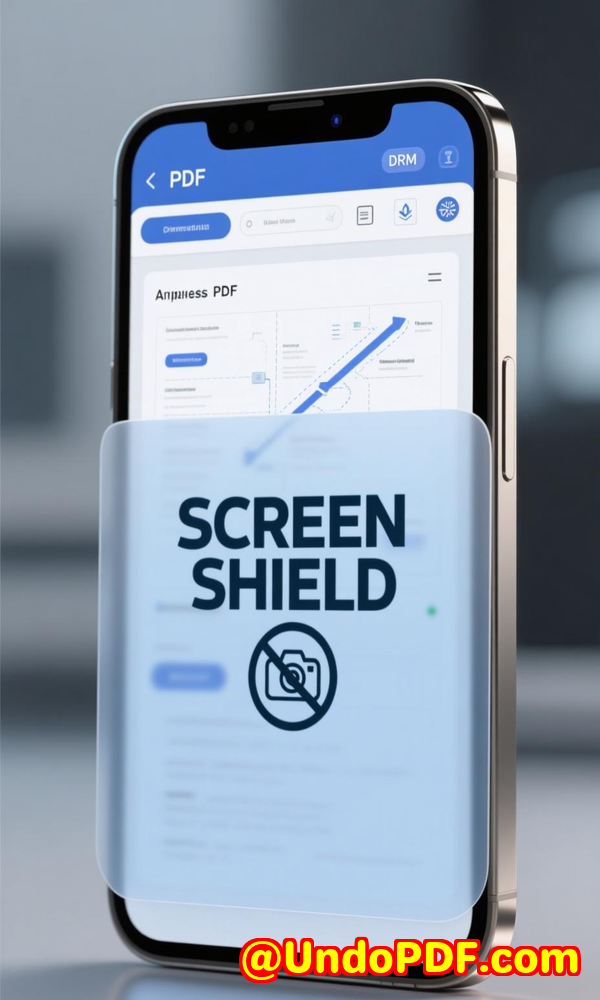
For example, you can set the viewable area of a PDF to 20%, 35%, or 50%.

This means the recipient sees only a portion of the page at a time.

Trying to screenshot the entire document becomes a tedious, almost impossible task.

Combine that with dynamic watermarking, and any screenshot that does get taken carries the recipient’s email, IP, and timestamp a clear deterrent.


Core Features That Saved My Sanity

1. Screen Shield

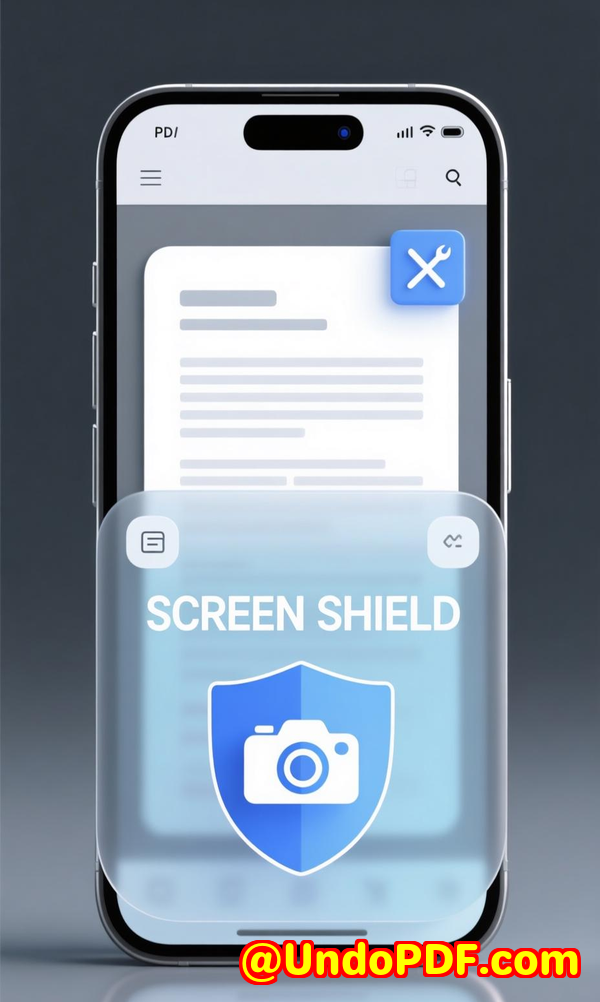
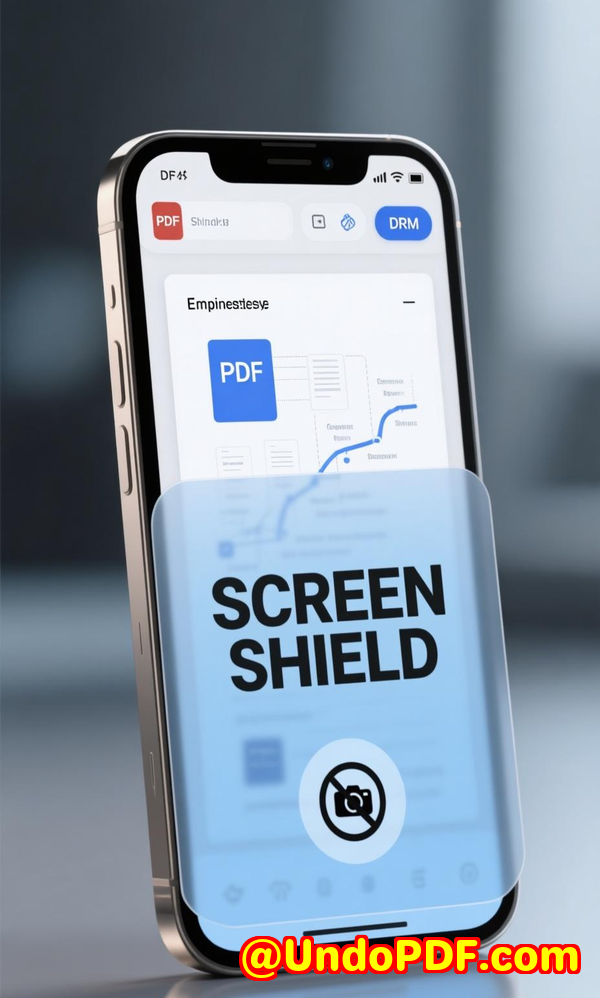
  • The moveable filter reduces the visible screen area to prevent unauthorized screenshots.

  • It works in the background, automatically hiding or blurring content when the viewer switches windows or tries to take a snapshot.

  • I remember sending a critical financial strategy document to a senior partner.

    With Screen Shield on, they could review, but anyone else trying to capture the document would see a heavily restricted portion only.

  • The peace of mind knowing that even if someone tried third-party screenshot software, it would be blocked that was huge.

2. Dynamic Watermarks

  • Watermarks aren’t just static; they include recipient-specific information like email, IP address, and timestamp.

  • I tested this by sending an internal exam sheet to different team members.

    Each copy had a unique watermark visible in the viewing area.

  • Even if someone tried to leak the content, the watermark made tracing the leak trivial.

  • Compared to static watermarks or plain PDF security, this felt like a robust, proactive approach.

3. Advanced Access Controls

  • You can restrict access by invitation only, require email validation, and even set a file to self-destruct after a single viewing.

  • This has been a lifesaver when updating sensitive materials.

  • Instead of sending a PDF multiple times, I can replace it with a new version, revoke access to the old one, and ensure everyone sees the most current file.

4. File Tracking & Analytics

  • Knowing who viewed a file, when, and from where is invaluable.

  • For one confidential report, I could see exactly how long each recipient spent on each page.

  • The detailed analytics, exportable to Excel, gave me data to ensure compliance and prevent misuse.

5. Easy Cloud Integration

  • Uploading PDFs is a breeze, whether from your computer or cloud services like Dropbox, Google Drive, OneDrive, or Box.

  • I no longer waste time juggling multiple storage platforms or manually sending updates.


Real-World Use Cases

Here’s where VeryPDF DRM Protector has truly shined for me:

  • Corporate Strategy Documents: Board presentations, financial forecasts, and merger strategies.

  • Intellectual Property: Product designs, patents, and technical manuals.

  • Education: Exam questions, answer keys, and online coursework.

  • Legal: Sensitive contracts and legal memos.

For example, last quarter, our team rolled out a confidential market analysis PDF to stakeholders in three countries.

With Screen Shield and dynamic watermarking, we ensured no one could copy or screenshot content without leaving a clear trail.

This saved countless hours of worrying and following up on unauthorized sharing.


Why VeryPDF Beats Other Tools

Before this, I relied on traditional PDF security apps.

They offered encryption, passwords, and basic watermarking.

But none tackled the real vulnerability: screenshots.

Even the best encryption fails once the screen content is exposed.

VeryPDF DRM Protector changes that by:

  • Reducing the visible screen area dynamically.

  • Automatically blurring content during screenshot attempts.

  • Integrating recipient-specific watermarks for accountability.

  • Offering full tracking and analytics to see who accessed what, when, and for how long.

It’s a comprehensive solution that treats PDF security as active and dynamic, not static.


My Takeaway

Since adopting VeryPDF DRM Protector, I feel in control over sensitive PDFs like never before.

No more sleepless nights worrying if a strategy deck or financial report leaked.

No more manual follow-ups or chasing down copies.

It’s easy to integrate into daily workflow, user-friendly, and backed by robust security features.

If you deal with highly confidential documents, I’d highly recommend this tool.

Click here to try it out for yourself: https://drm.verypdf.com/

Start your free trial now and see how it can transform your document security.


Custom Development Services by VeryPDF

VeryPDF offers custom development services tailored to your technical needs.

Whether you require PDF solutions for Linux, Windows, macOS, or server environments, VeryPDF’s expertise covers a broad range of technologies.

Services include:

  • Utilities in Python, PHP, C/C++, Windows API, Linux, Mac, iOS, Android, JavaScript, C#, .NET, HTML5.

  • Development of Windows Virtual Printer Drivers for PDF, EMF, and image output.

  • Tools for capturing and monitoring printer jobs, converting to PDF, EMF, PCL, PostScript, TIFF, JPG.

  • System-wide and application-specific API hook layers to intercept file access.

  • Document analysis: PDF, PCL, PRN, PostScript, EPS, Office formats.

  • Barcode recognition/generation, layout analysis, OCR, and OCR table recognition.

  • Report/document form generators, image conversion tools, and management solutions.

  • Cloud-based solutions for document conversion, viewing, digital signatures.

  • PDF security, DRM protection, dynamic watermarking, TrueType font technology, and Office/PDF printing.

For custom solutions, contact VeryPDF through the support center: https://support.verypdf.com/


FAQs

Q1: Can VeryPDF DRM Protector stop all screenshots?

Yes, with Screen Shield enabled, it dynamically restricts the visible area and blocks third-party screenshot tools.

Q2: Does using Screen Shield affect user experience?

Recipients will see only part of the page at a time, which may require more effort to view. It’s recommended for highly confidential documents.

Q3: Can I watermark PDFs dynamically with recipient info?

Absolutely. Dynamic watermarks can include email, IP, timestamp, and other custom info.

Q4: Can I revoke access to a PDF after sharing?

Yes, you can revoke access at any time and replace the file with a new version.

Q5: Which file types are supported for preview?

PDF, Word, Excel, PowerPoint, images, and even videos can be previewed in-browser with protections applied.


Tags / Keywords

  • Prevent PDF screenshots

  • Screen Shield PDF protection

  • Dynamic watermarking PDF

  • Corporate document security

  • Confidential PDF management

  • VeryPDF DRM Protector

  • Secure sensitive PDFs

  • PDF access control

  • Protect intellectual property

  • PDF content security

UndoPDF

Why financial analysts use DRM software to stop screenshot theft of PDF market research

Why Financial Analysts Use DRM Software to Stop Screenshot Theft of PDF Market Research

Learn how financial analysts protect sensitive PDF market research with VeryPDF DRM Protector and Screen Shield to prevent screenshots and leaks.

Why financial analysts use DRM software to stop screenshot theft of PDF market research

Every quarter, I used to spend hours compiling market research reports, only to hear later that someone had leaked parts of them online.

It’s a common nightmare for financial analysts: you pour your time and expertise into analysing market trends, forecasting numbers, and producing insightsthen your hard work gets shared without permission.

Worse, the leaked content often ends up in competitors’ hands.

I knew I needed a solution that actually prevented this, not just slapped a watermark on a PDF.

Protecting Market Research PDFs: My Personal Experience

After some trial and error, I discovered VeryPDF DRM Protector with its Screen Shield feature.

It changed the way I handle confidential PDF reports entirely.

Instead of worrying about screenshots or content theft, I could focus on creating high-quality analysis.

VeryPDF DRM Protector is a web-based solution designed to protect PDFs against copying, downloading, and particularly screenshot theft.

For financial analysts, this is a game-changer: reports containing revenue projections, competitor analysis, and proprietary models are now secure.

The tool is especially useful for anyone who shares PDFs externally or internally but wants to maintain tight control over access.

Key Features That Make a Difference

1. Screen Shield Stop Screenshots in Their Tracks

The Screen Shield is the real MVP here.

When enabled, it reduces the viewable area of your PDF with a moveable filter, making it nearly impossible to take full-page screenshots.

I experimented with different settings:

  • 20% viewable area: only a small portion of the page is visible at a time.

  • 35% viewable area: gives readers a little more context without exposing the full page.

  • 50% viewable area: balances readability and security.

Even better, Screen Shield detects when a viewer switches tabs or tries to screenshot. It automatically blurs or hides content.

I remember one instance when a colleague tried to save a snapshot of a sensitive chartI received a notification immediately, and the attempt failed.

This proactive protection reassured me that my market research was safe, even if someone tried to bypass it.

2. Dynamic Watermark Add Extra Accountability

Beyond Screen Shield, VeryPDF DRM Protector allows dynamic watermarking.

Each PDF can be watermarked with the recipient’s email, IP address, and the date/time of viewing.

I started sharing quarterly market reports with my team and clients with these watermarks enabled.

It created an instant psychological deterrentpeople think twice before trying to capture or redistribute the PDF because their identity is literally stamped on it.

3. Access Control & Recipient Verification

With VeryPDF DRM Protector, I can control exactly who sees my PDFs.

Access can be limited to specific recipients, and they must verify their identity before opening the file.

If I accidentally send a file to the wrong person, I can revoke access immediately.

Previously, if a sensitive PDF landed in the wrong inbox, there was nothing I could do.

Now, I have real-time control and peace of mind.

4. Detailed Analytics Know Exactly Who Views Your Files

One of the most useful features for me is file tracking.

I can see who opened a report, from which device, for how long, and even whether they tried to print or download.

This level of insight helps me understand engagement with my research and identify any unusual activity.

5. Easy Cloud Integration & File Management

Uploading files from Dropbox, Google Drive, or OneDrive is straightforward.

Even if I update a report with new data, I can replace it as a new version without breaking the workflow for recipients.

This feature alone saved me countless emails and confused follow-ups.

Comparing With Other Tools

I’ve tried other PDF protection solutions before, and honestly, most fall short.

Some only apply static watermarks that are easy to crop or remove.

Others allow full-page screenshots despite “protection” claims.

VeryPDF DRM Protector’s combination of Screen Shield, dynamic watermarking, and access control is unmatched.

It doesn’t just discourage leaksit actively prevents them.

Use Cases: Who Benefits Most

  • Financial analysts and investment firms: Protect sensitive market research, forecasts, and client reports.

  • Consulting agencies: Safeguard proprietary analysis shared with clients.

  • Educational institutions: Secure exam papers, grading rubrics, or confidential research.

  • Corporate teams: Maintain confidentiality of internal reports, strategy documents, and intellectual property.

Practical Advantages

  • Blocks unauthorized screenshots even if the viewer tries third-party software.

  • Reduces risk of intellectual property theft.

  • Tracks recipient engagement for better accountability.

  • Simplifies document management with cloud integration, versioning, and revocable access.

My Recommendation

I can confidently say that using VeryPDF DRM Protector has transformed how I handle sensitive PDFs.

No more sleepless nights worrying about leaked market research.

If you deal with confidential financial data, investment research, or proprietary analysis, this is the tool to have.

Click here to try it out for yourself: https://drm.verypdf.com/

Start protecting your PDFs todayit’s a small step that saves you huge headaches.

Custom Development Services by VeryPDF

VeryPDF offers comprehensive custom development services tailored to your specific PDF and document security needs.

Whether you need Linux, macOS, Windows, or server-based solutions, their team can build utilities using Python, PHP, C/C++, Windows API, Linux, Mac, iOS, Android, JavaScript, C#, .NET, and HTML5.

Specialised services include:

  • Windows Virtual Printer Drivers for PDF, EMF, and image formats.

  • Tools to capture and monitor print jobs from all Windows printers.

  • API and system-level hooks to track and intercept file access.

  • Document format analysis for PDF, PCL, PRN, Postscript, EPS, and Office documents.

  • OCR and OCR table recognition for scanned PDFs and TIFFs.

  • Barcode recognition, report generators, graphical conversion tools, and cloud-based document solutions.

  • PDF security, digital signatures, DRM protection, and document printing technologies.

For custom projects, contact VeryPDF’s support center at https://support.verypdf.com/ to discuss your requirements.

FAQ

1. Can Screen Shield prevent screenshots completely?

Yes. While it reduces the viewable area, making full-page screenshots nearly impossible, it is most effective when combined with dynamic watermarks for maximum deterrence.

2. Who is the ideal user for VeryPDF DRM Protector?

Financial analysts, consulting firms, educators, corporate teams, and anyone sharing highly confidential PDFs externally or internally.

3. Can I update a PDF after sharing it?

Absolutely. VeryPDF DRM Protector supports file replacement and versioning, allowing you to send updated content without confusion.

4. Does it work with cloud storage?

Yes. Files can be uploaded from Dropbox, Google Drive, OneDrive, and Box seamlessly.

5. Can I track who views my PDF and when?

Yes. You receive detailed analytics on views, print/download attempts, and recipient engagement, even with instant email notifications.

Tags or Keywords

PDF screenshot protection, financial PDF security, DRM PDF, market research PDF protection, VeryPDF DRM Protector, Screen Shield, PDF access control, secure PDF sharing, dynamic watermark PDF, stop PDF leaks

UndoPDF

Protect confidential PDF sales data from screenshots with DRM access control and tracking

Protect Confidential PDF Sales Data from Screenshots with DRM Access Control and Tracking

Keep your PDF sales data secure with VeryPDF DRM Protector’s Screen Shield, access control, and tracking features to prevent unauthorized screenshots.

Protect confidential PDF sales data from screenshots with DRM access control and tracking


Every time I sent out confidential sales reports or financial projections to our remote team, a knot formed in my stomach.

Even with password-protected PDFs, I kept imagining someone taking screenshots and sharing sensitive data without my knowledge.

I knew the risks: leaked pricing strategies, client information, and revenue forecasts could cost my business big time.

I tried a few common PDF security tools. Some blocked printing, others limited downloads, but screenshots? Those always slipped through.

That’s when I discovered VeryPDF DRM Protector with Screen Shielda game changer for protecting confidential PDF sales data.


Why Screen Shield Changed How I Secure PDFs

VeryPDF DRM Protector isn’t just another PDF security tool.

It’s designed for businesses that need tight control over sensitive documents and want to prevent screenshots in real time.

Here’s what stood out the first time I used it:

  • Screen Shield for Screenshot Prevention

    Screen Shield reduces the visible area of the PDF with a movable filter.

    When someone tries to screenshot, the content is automatically blurred or hidden.

    I experimented with different viewable areas20%, 35%, 50%and it really slows down anyone attempting to capture the whole document.

  • Dynamic Watermarking

    Every file I send can be watermarked with the recipient’s email, IP address, and even the date and time it’s viewed.

    It’s subtle but effective. I once sent a pricing report to a distributor, and seeing their own email stamped on each page made them double-check before sharing externally.

  • Access Control & Recipient Verification

    I can set up files to be accessible by invitation only, with email verification or an extra password.

    Need to revoke access? Easy. A quick click, and the document is off-limits.

    This gave me peace of mind when I mistakenly shared a financial forecast with the wrong personno harm done.

  • File Tracking and Analytics

    One of the coolest features is the analytics dashboard.

    I can see exactly who viewed a file, when, for how long, and whether it was printed or downloaded.

    For example, last month I tracked a critical sales proposal and noticed one team member reviewing it multiple times over several days.

    This insight helped me follow up promptly and close the deal faster.

  • Cloud Integration & File Management

    Uploading multiple files from Dropbox, Google Drive, OneDrive, or Box is seamless.

    I replaced a version of a quarterly report after spotting a typo, and the recipient automatically got the new version without me resending emails.

    Compared to other tools I tried, this streamlined versioning alone saved me hours.


Real-World Scenarios Where Screen Shield Shines

If you handle confidential sales PDFs, this tool is gold. Here’s how I use it in practice:

  • Internal Sales Reports

    Every quarter, I distribute performance reports to my team.

    With Screen Shield enabled, I don’t worry about screenshots ending up in client hands.

  • Pricing Strategies

    Our pricing sheets are highly sensitive.

    Screen Shield ensures recipients can’t capture and stitch pages together for competitors.

  • High-Stakes Contracts

    I’ve used VeryPDF DRM Protector when sending draft contracts to external partners.

    The combination of access control, revoking permissions, and watermarks prevents leaks and maintains confidentiality.

  • Exam or Assessment Documents

    While not sales-related, this feature is brilliant for academic testing.

    Schools and exam boards can protect question papers from being screenshotted or copied.


How VeryPDF Outperforms Other Tools

Before I found VeryPDF DRM Protector, I tried other PDF security solutions. Here’s how they compare:

  • Traditional PDF security: Often just password protection. Easily bypassed with screenshots or PDF unlockers.

  • Other DRM solutions: Some block printing or downloads but allow full-screen screenshots.

  • VeryPDF DRM Protector: Stops screenshots, controls access, tracks views, and integrates dynamic watermarkingall in one solution.

I remember a time when a competitor tool failed to block a colleague from taking screenshots of an entire pricing deck.

With Screen Shield, I tested the same scenarioonly 20% of the page was visible at a time.

It was nearly impossible to capture the full document, which is exactly the protection I needed.


My Personal Workflow with VeryPDF DRM Protector

Here’s how I integrate it into my daily workflow:

  1. Upload File: PDFs, images, Word docs, Excel sheetseven videos can be uploaded.

  2. Set Security Parameters: Decide on access control, screen shield settings, watermarking, and expiration dates.

  3. Send Invites: One recipient or a thousand, automated invitations make it painless.

  4. Monitor Activity: Check analytics to see who opened the file, for how long, and if any print/download attempts occurred.

  5. Update or Revoke: Replace the file with a new version or revoke access instantly if needed.

It’s saved me hours of follow-ups, prevented potential leaks, and made sharing sensitive information stress-free.


Why I Recommend VeryPDF DRM Protector

If you handle highly sensitive sales data, intellectual property, or financial reports, this is a must-have tool.

  • Prevents screenshots with Screen Shield

  • Tracks recipient activity in real time

  • Controls file access with invitations, passwords, and expiry settings

  • Adds accountability with dynamic watermarks

  • Streamlines versioning and updates

I’d highly recommend this to anyone who deals with large volumes of PDFs or confidential documents.

Click here to try it out for yourself: https://drm.verypdf.com/


Custom Development Services by VeryPDF

VeryPDF offers tailored development services to meet your specific PDF and document management needs.

Whether it’s Linux, macOS, Windows, or server environments, VeryPDF can create custom solutions using Python, PHP, C/C++, Windows API, Linux, Mac, iOS, Android, JavaScript, C#, .NET, and HTML5.

They specialise in Windows Virtual Printer Drivers for PDF, EMF, and image formats, as well as print job capturing and monitoring tools.

Other services include system-wide and application-specific hook layers, document format processing (PDF, PCL, PRN, Postscript, EPS, Office), barcode recognition and generation, OCR, layout analysis, report and form generation, cloud solutions, and advanced PDF security and DRM protection.

For customised solutions, contact VeryPDF at https://support.verypdf.com/.


FAQs

Q1: Can Screen Shield completely prevent screenshots?

A1: While it significantly reduces the risk, no tool can guarantee 100% prevention. Screen Shield makes screenshots difficult and discourages attempts by limiting the viewable area.

Q2: Can I revoke access after sending a file?

A2: Yes. You can instantly revoke access if the document is sent to the wrong recipient or circumstances change.

Q3: Does VeryPDF DRM Protector support multiple file types?

A3: Yes. You can secure PDFs, Word, Excel, PowerPoint, images, and even videos.

Q4: Can I combine Screen Shield with watermarks?

A4: Absolutely. Dynamic watermarks can be added to show recipient details, creating an extra layer of accountability.

Q5: How do I track who viewed my files?

A5: The platform provides detailed analytics, showing who accessed the document, from where, for how long, and if it was printed or downloaded.


Tags / Keywords

PDF screenshot protection, DRM access control, Screen Shield, VeryPDF DRM Protector, secure PDF files, prevent PDF leaks, dynamic watermark, confidential document security, PDF tracking, access control

UndoPDF

How to prevent screenshots of legal PDF evidence files with DRM screen shield technology

How to Prevent Screenshots of Legal PDF Evidence Files with DRM Screen Shield Technology

Protecting sensitive PDF files has always been a headache for legal teams, auditors, and compliance officers.

Every time I shared a PDF containing critical contracts or evidence, I worried someone could just take a screenshot and distribute it without permission.

It’s frustratingespecially when these files are supposed to stay confidential.

Even encrypted PDFs don’t fully solve this problem. You can set passwords and restrict printing, but screenshots? That’s a blind spot for most software.

This is exactly why I started using VeryPDF DRM Protector with Screen Shielda tool that stops screenshots dead in their tracks.

You can check it out here: https://drm.verypdf.com/.

How to prevent screenshots of legal PDF evidence files with DRM screen shield technology

Why Traditional PDF Security Falls Short

I used to rely on standard PDF protection features: password locks, permissions settings, and even dynamic watermarks.

They helped a bit, but let’s be honestanyone determined could bypass them.

All it took was a quick screenshot, crop, and stitch trick, and suddenly your sensitive legal evidence is floating around unchecked.

Even worse, some recipients used third-party software to capture entire pages at once, rendering all those protections useless.

I realised there had to be a smarter way to protect my PDFs beyond just encryption.

That’s when I discovered VeryPDF DRM Protector’s Screen Shield.

How VeryPDF DRM Protector’s Screen Shield Works

The core idea is simple but powerful: it reduces the viewable area of a PDF on screen.

Instead of letting someone see the entire page at once, they only see a portion at a time.

Here’s what makes it unique:

  • Moveable Filter: A mask covers the PDF content, which you can move around.

  • Screenshot Detection: If someone tries to capture the screen or switches tabs, the content automatically hides or blurs.

  • Zoom Restrictions: You can disable zoom in/out buttons to prevent single-page screenshots.

  • Dynamic Watermark Integration: Combine it with watermarks showing recipient emails, IPs, or timestamp for extra deterrence.

When I first enabled Screen Shield on a set of confidential contracts, I immediately noticed the difference.

Recipients couldn’t just take a simple screenshotthey had to move the filter around, taking multiple shots to see the whole document.

It sounds minor, but it significantly discourages casual or even determined screenshot attempts.

Key Use Cases I’ve Found

The tool isn’t just for lawyersany industry dealing with high-stakes confidential files benefits.

Here are a few scenarios where I’ve personally used it:

  • Legal Evidence Files: Sharing scanned contracts, agreements, or court submissions.

  • Financial Reports: Internal company financial performance documents for executives.

  • Exam Papers: Schools or universities sending test questions securely to staff.

  • Intellectual Property: Sharing design plans, patent drafts, or R&D documents.

For me, the biggest wins came with legal evidence files.

Before, every PDF I sent had a nagging risk of being copied outside our secure channels.

After applying Screen Shield, I felt confident sharing sensitive information, knowing recipients would struggle to take full-page screenshots.

Features That Truly Made a Difference

I want to highlight three features that changed the way I handle PDFs:

  1. Reduced Viewable Area

    I can scale the visible portion of a page to 20%, 35%, or 50%.

    It’s incredible how something so simple can prevent casual screenshot attempts.

    For highly confidential legal files, I usually keep it around 35%.

  2. Screenshot Detection and Blurring

    The first time a recipient tried to capture a page, the content blurred instantly.

    This real-time protection removes the need to chase people down or worry about unintended leaks.

  3. Dynamic Watermarks

    Adding a watermark with the recipient’s email and IP address was a game-changer.

    It’s a psychological deterrentpeople are much less likely to try screenshots when their identity is visible.

I’ve also experimented with other PDF security tools. Most of them focus on encryption or copy restrictions, but none tackle screen capture effectively.

Some claim “screenshot protection,” but in my experience, they either fail with common tools or require complex setups.

VeryPDF DRM Protector made it simpleI set the parameters once, and I didn’t have to babysit every file.

My Personal Workflow

Here’s how I integrate VeryPDF DRM Protector into my routine:

  • Upload PDFs to the online portal or directly from cloud storage (Dropbox, Google Drive, OneDrive).

  • Apply Screen Shield and select the viewable area.

  • Enable dynamic watermarks with recipient details.

  • Configure access controls, like requiring an email login or setting a file expiry date.

  • Send the link to recipients via invitation; they receive it automatically.

I particularly love the versioning feature. If I spot a typo or update a contract, I can replace the file without breaking the access settings.

Recipients always see the latest version, and I don’t have to resend emails.

The Advantages Over Other Tools

Compared to standard PDF protections:

  • Stronger screenshot deterrent: Other tools rely on trust; Screen Shield relies on technology.

  • Integrated workflow: Upload, protect, share, trackall in one platform.

  • Granular access control: Decide who sees what and when, with easy revocation.

  • Analytics and tracking: I can see exactly who viewed my documents and for how long.

  • Customisation: Dynamic watermarks and moveable filters make each document unique per recipient.

Honestly, once you start using it, it feels like someone finally covered that last blind spot in document security.

Conclusion: Why I Recommend VeryPDF DRM Protector

If you handle legal documents, financial reports, intellectual property, or any sensitive PDFs, VeryPDF DRM Protector with Screen Shield is a must-have.

It stops screenshots, protects against leaks, and gives you detailed tracking of file activity.

I can now share confidential files without constantly worrying about unauthorised copying.

I’d highly recommend this to anyone who deals with large volumes of PDFs containing sensitive information.

Click here to try it out for yourself: https://drm.verypdf.com/

Start your free trial now and feel the peace of mind that comes with robust document protection.

Custom Development Services by VeryPDF

VeryPDF offers comprehensive custom development services to meet unique technical requirements.

Whether you need PDF processing solutions for Windows, Linux, macOS, or server environments, VeryPDF can tailor tools to your needs.

Their services include:

  • Programming & Integration: Python, PHP, C/C++, Windows API, Linux, macOS, iOS, Android, JavaScript, C#, .NET, and HTML5 solutions.

  • Windows Virtual Printer Drivers: Create PDFs, EMF, or images and monitor all print jobs.

  • Document Analysis & Conversion: Handle PDF, PCL, PRN, Postscript, EPS, Office documents, and more.

  • OCR & Table Recognition: Extract data from scanned PDFs and TIFF files.

  • Security & DRM Solutions: PDF encryption, digital signatures, watermarking, and access controls.

  • Cloud & Online Tools: File conversion, viewing, and digital signature management.

If you have specific technical needs or require customised solutions, contact VeryPDF via their support centre: https://support.verypdf.com/.

FAQ

1. Can VeryPDF DRM Protector stop all types of screenshots?

Yes, Screen Shield actively reduces the viewable area and blurs content when a screenshot attempt is detected.

2. Can I integrate dynamic watermarks with Screen Shield?

Absolutely. You can watermark each recipient’s email, IP, and timestamp directly onto the PDF viewable area.

3. Is it difficult for recipients to view the protected file?

There is some extra effort due to the reduced viewable area, but it’s minimal for legitimate users and highly effective against leaks.

4. Can I revoke access after sending a file?

Yes. You can revoke access at any time, even if the recipient already has the link.

5. What file formats are supported?

VeryPDF DRM Protector supports PDF, Word, Excel, PowerPoint, images, and even video previews in its online viewer.

Tags / Keywords

  • PDF screenshot protection

  • DRM screen shield

  • Legal PDF security

  • Prevent PDF copying

  • Confidential document protection

  • VeryPDF DRM Protector

  • Dynamic watermarks

This tool has changed the way I handle sensitive PDF files.

With Screen Shield, unauthorized screenshots are no longer a headache, they’re just a memory of the old, unsafe way.

UndoPDF

Secure PDF contracts from screenshots by clients and competitors with DRM restrictions

Secure PDF contracts from screenshots by clients and competitors with DRM restrictions

Protect sensitive PDF contracts from unauthorized screenshots and sharing with VeryPDF DRM Protector’s Screen Shield and dynamic watermarking features.

Secure PDF contracts from screenshots by clients and competitors with DRM restrictions


Every Monday morning, I used to dread opening my inbox. Hundreds of PDF contracts from clients, partners, and colleagues piled up, each one containing confidential data: financial projections, intellectual property, or sensitive legal terms. The worst part? Even after sending a contract, there was no guarantee it wouldn’t be copied, screenshotted, or shared without permission.

Like many professionals, I once relied solely on standard PDF protectionspasswords, read-only settings, and even document encryption. They helped a bit, but in practice, anyone with basic screen capture tools could bypass them within seconds. One morning, I discovered a client had stitched together screenshots of an entire contract I’d shared, bypassing our secure email system entirely. That was the last straw. I needed something stronger, something that could stop screenshots dead in their tracks.

That’s when I found VeryPDF DRM Protector, specifically its Screen Shield feature.


How VeryPDF DRM Protector Changed the Way I Share PDFs

At first glance, VeryPDF DRM Protector looked like another PDF security tool, but as I explored its features, I realised it wasn’t just about passwords or limiting downloads. It was a full-fledged digital rights management solution designed for professionals who handle highly sensitive documents.

The tool is primarily targeted at:

  • Legal teams sending contracts or confidential agreements.

  • Financial analysts sharing reports with internal or external stakeholders.

  • Educators and exam boards distributing questions or sensitive teaching materials.

  • Businesses handling intellectual property that must remain confidential.

In short, anyone who deals with PDFs containing sensitive, confidential, or proprietary information can benefit from it.


Key Features That Make a Difference

1. Screen Shield: Stop Screenshots Before They Happen

The first feature that impressed me was Screen Shield.

Instead of just encrypting the PDF or preventing copy-paste, Screen Shield actively protects the content on the screen. Here’s how it works:

  • It reduces the viewable area of the document with a moveable, watermarked filter. Recipients can only see a portion of the PDF at a time.

  • Screenshot attempts automatically blur or hide the content, so even if someone tries to capture the screen, they get almost nothing.

  • The viewable area is adjustable20%, 35%, or 50% of the documentgiving you control over how much someone can see at once.

  • It works alongside dynamic watermarking, overlaying the recipient’s email, IP address, and timestamp directly on the document, which discourages screenshots further.

When I tested this on a confidential financial report, the difference was night and day. Before, I worried that anyone with a screen capture tool could steal the whole document in minutes. Now, with Screen Shield, recipients would need hours of work just to piece together what they see on-screenand most won’t bother.


2. Access Control and Recipient Verification

Another huge advantage is how VeryPDF handles access management.

  • I can control whether files are accessible by invitation only or through a link with email validation.

  • Recipients are sometimes asked to verify their identity before accessing a PDF.

  • If a file is sent to the wrong person, I can revoke access instantly, even after the document has been opened.

This gave me a level of confidence I hadn’t had with other tools. Previously, once a PDF was sent, I lost all control. Now, I know I can retract access if anything goes wrong.


3. Easy Cloud Import and File Versioning

VeryPDF DRM Protector also makes managing multiple documents effortless:

  • I can import files from Dropbox, Google Drive, OneDrive, and Box.

  • Need to update a contract? I simply replace it as a new version. The recipient always sees the latest version without having to resend emails.

For example, I recently sent out a service agreement that had a typo in the first version. Instead of emailing a corrected file, I uploaded the new version, and all recipients automatically got access to the corrected contract. This alone saved me hours of back-and-forth.


4. File Tracking and Notifications

Another feature I now rely on is instant view notifications and detailed tracking.

  • I get an email whenever a recipient opens a file, which is great for keeping tabs on when contracts are viewed.

  • Detailed analytics let me see who viewed the file, from where, for how long, and whether it was printed or downloaded.

  • All data can be exported to Excel for record-keeping or compliance purposes.

Before using VeryPDF DRM Protector, I never knew if someone had actually opened an agreement until they responded. Now, I have full visibility.


Real-World Use Cases

Here’s how I use VeryPDF DRM Protector in my day-to-day workflow:

  • Law firm scenario: I send NDAs and contracts to clients. Screen Shield prevents them from screenshots, while dynamic watermarking deters leaks.

  • Finance scenario: Quarterly reports often contain sensitive projections. VeryPDF ensures only authorized people see them, and tracking confirms who has accessed what.

  • Education scenario: Exam questions and answers are sent to remote invigilators. With Screen Shield, copying or sharing is nearly impossible.

It’s versatile, and I can confidently use it across different industries and sensitive document types.


Comparing to Other Tools

I’ve tried several PDF protection tools before:

  • Traditional PDF encryption: Easy to bypass with screen capture or copy-paste.

  • Watermarking alone: Provides minimal deterrence; screenshots still work.

  • Enterprise DRM systems: Powerful but overly complicated and expensive.

VeryPDF DRM Protector hits the sweet spot: strong security without sacrificing usability. It’s intuitive, effective, and surprisingly fast to implement.


My Recommendation

If you deal with highly confidential PDFs, I’d highly recommend VeryPDF DRM Protector.

It solves practical problems like:

  • Preventing unauthorized screenshots

  • Ensuring recipient accountability

  • Managing versions and access control efficiently

  • Tracking document engagement in real time

It’s become my go-to solution for securing sensitive contracts, financial reports, and intellectual property.

Start your free trial now and see how it can protect your files: https://drm.verypdf.com/


Custom Development Services by VeryPDF

VeryPDF offers bespoke development services to meet your exact technical needs. Their expertise covers:

  • PDF processing utilities for Linux, macOS, Windows, and server environments.

  • Development with Python, PHP, C/C++, Windows API, Linux, Mac, iOS, Android, JavaScript, C#, .NET, and HTML5.

  • Windows Virtual Printer Drivers generating PDF, EMF, and image formats, plus tools to monitor and capture print jobs.

  • Advanced document format analysis, including PDF, PCL, PRN, Postscript, EPS, and Office documents.

  • Technologies for barcode recognition, OCR, OCR table extraction, and layout analysis.

  • Solutions for PDF security, DRM protection, digital signatures, and document tracking.

For unique requirements, contact VeryPDF at https://support.verypdf.com/ to discuss your project.


FAQ

Q1: How does Screen Shield prevent screenshots?

A1: Screen Shield reduces the visible area of your PDF and blurs content when a screenshot is attempted, making it difficult to capture the document.

Q2: Can I revoke access after sending a file?

A2: Yes, you can instantly revoke access at any time, even after the file has been opened.

Q3: Does VeryPDF DRM Protector support cloud storage?

A3: Absolutely. You can import files from Dropbox, Google Drive, OneDrive, and Box.

Q4: Can I track who views my PDFs?

A4: Yes, you get detailed analytics including who viewed, where, for how long, and whether the file was printed or downloaded.

Q5: Is this solution suitable for highly confidential contracts?

A5: Yes, Screen Shield and dynamic watermarking make it ideal for contracts, financial reports, exam papers, and intellectual property.


Tags / Keywords

PDF screenshot protection, PDF DRM, Screen Shield, secure PDF contracts, dynamic watermark, PDF access control, prevent PDF leaks, confidential document protection, VeryPDF DRM Protector, PDF security software