UndoPDF

Why DRM with watermark is the most reliable way to prevent screenshot piracy of PDF eBooks

Why DRM with Watermark is the Most Reliable Way to Prevent Screenshot Piracy of PDF eBooks

Every time I sent an important PDF eBook to clients or students, I’d get this nagging worry: someone could just screenshot the pages and share them freely online. I’ve lost count of the times I’ve seen valuable intellectual property floating around the web because the file was “protected” in name only. You think sending a PDF safely is enough, but screenshots, screen capture tools, and third-party plug-ins make your content extremely vulnerable. That’s when I discovered VeryPDF DRM Protector Prevent PDF Screenshots with Screen Shield, and it changed how I secure my documents entirely.
Why DRM with watermark is the most reliable way to prevent screenshot piracy of PDF eBooks

Why Traditional PDF Protection Isn’t Enough

At first, I relied on standard password protection and copy restrictions in PDFs. It seemed solidonly authorized people could open the file, right? Wrong. Within minutes, recipients could capture screenshots, stitch them together, and bypass all those restrictions. Even with copy and print disabled, nothing stopped determined viewers.

The issue is simple: conventional PDF security works at the file level, but screenshots operate at the screen level. No PDF setting can stop someone from taking a picture of their screenuntil you add an intelligent layer like Screen Shield.

How I Discovered VeryPDF DRM Protector

I stumbled upon VeryPDF DRM Protector while looking for a solution to prevent PDF screenshot piracy. The product promised more than just encryption or copy preventionit included a patented Screen Shield feature designed specifically to frustrate and deter screenshots. What really sold me was the combination of DRM, dynamic watermarking, and access control in one platform.

The setup was straightforward. I uploaded my eBooks to the VeryPDF DRM cloud, configured the Screen Shield, and set dynamic watermarks with recipient email addresses. Almost immediately, I could see how effective it was. The viewable area could be reduced to a fraction of the page, zoom controls disabled, and screen capture attempts automatically blurred or blocked.

Key Features That Made a Difference

1. Screen Shield for Screenshot Prevention

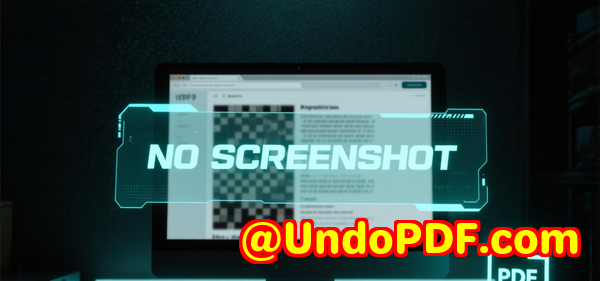
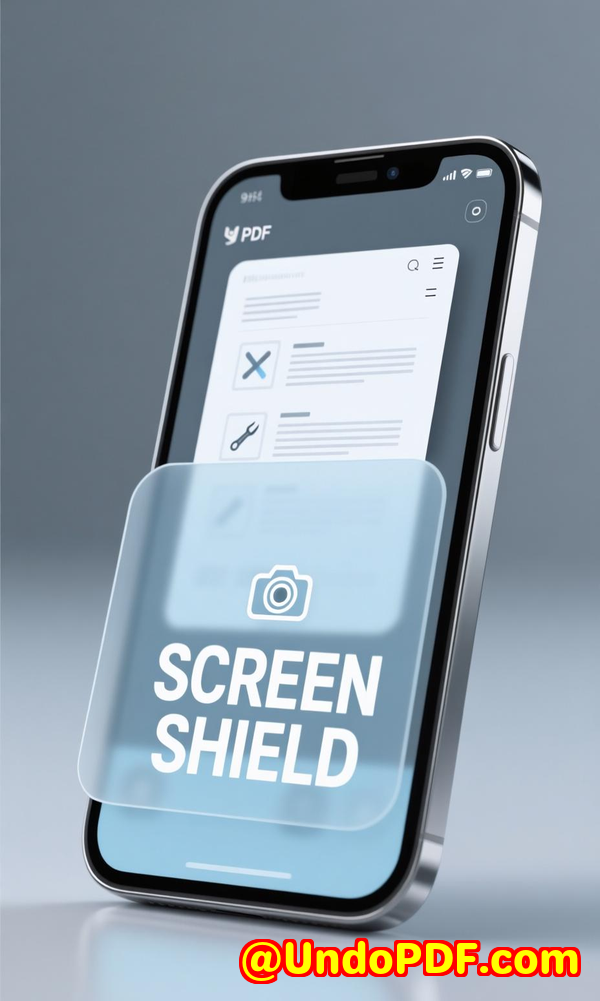
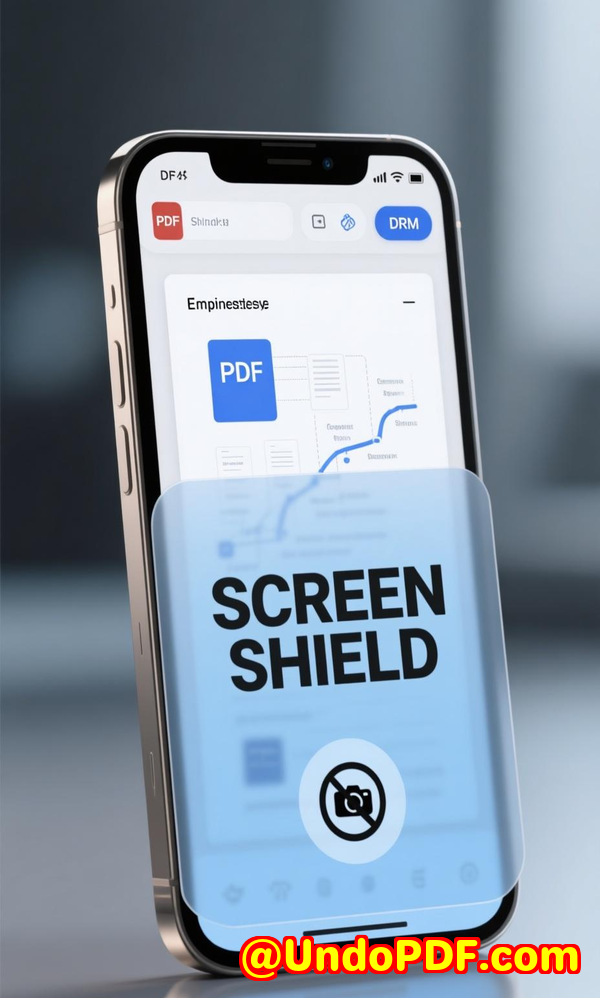
The Screen Shield was a game-changer. It reduces the viewable area of a PDF so that recipients can only see a portion of the page at a time. This not only makes screenshots difficult but discourages them entirely.

I tested it by trying to screenshot a document myself. With the filter enabled, the visible content moved dynamically, and any attempt to capture it resulted in a blurred or hidden image. Even advanced software that normally grabs full-page screenshots failed. It was clever, seamless, and effective.

2. Dynamic Watermarking

Dynamic watermarking takes security up a notch. Each page of the PDF can automatically display the recipient’s email, IP address, and timestamp. This creates a psychological deterrent: anyone thinking of taking a screenshot knows that the file is uniquely tied to them.

I used this feature with a sample eBook for my students. Within hours, I received a query from one recipient asking if the watermark could be movedproof they noticed it. That alone was a huge win because it stopped casual sharing and reminded them the file was monitored.

3. Access Control and File Management

VeryPDF DRM Protector also lets you control exactly who can view your files, set expiry dates, and revoke access instantly. I had one situation where a draft eBook was mistakenly sent to the wrong recipient. A quick click to revoke access saved me from potential leaks.

The cloud-based file replacement feature is another lifesaver. Typos happen, and content needs updates. I replaced the old file with a corrected version without sending a new linkrecipients automatically accessed the latest copy. That saved hours of back-and-forth.

Use Cases That Truly Benefit

Intellectual Property Protection

Authors, publishers, and creators often face content theft. Screen Shield with DRM and watermarking ensures your ideas and creative work stay yours.

Financial Reports and Confidential Business Documents

I’ve shared sensitive business analysis and financial performance reports with colleagues. Using VeryPDF DRM Protector, I could restrict viewing to specific recipients and prevent screenshots, protecting sensitive information.

Exam Questions and Education Materials

Educators often distribute exam papers or solutions digitally. With the Screen Shield, only small portions of the page are visible, preventing leaks, and dynamic watermarks tie every file to a recipient.

Core Advantages of VeryPDF DRM Protector

  • Comprehensive Protection: Combines encryption, rights management, screen shield, and watermarking in one platform.

  • Easy to Use: No steep learning curve; even non-technical users can secure PDFs quickly.

  • Real-Time File Tracking: Monitor who viewed your files, when, and how they interacted with them.

  • Flexible Access Control: Invitations, expiry dates, and revocations give you total control.

  • Psychological Deterrent: Watermarks remind viewers that content is monitored, reducing theft attempts.

Compared to other PDF tools I’ve tried, VeryPDF’s approach is holistic. Other platforms either block printing or encrypt files, but none tackle the screenshot problem like Screen Shield. The combination of visible-area restriction and dynamic watermarking makes content theft a frustrating, almost impossible task.

Personal Experience

Since I started using VeryPDF DRM Protector, I’ve noticed a huge decrease in PDF leaks. Clients, students, and colleagues understand that my documents are protected, and the additional effort required to capture content has deterred casual piracy entirely. The integration is simple, and the cloud-based approach makes file updates painless.

One of my standout experiences was when I shared a financial report with a select group. Normally, I’d be anxious about screenshots. With Screen Shield enabled, I could actually see that one recipient tried to zoom and capture but gave up quickly. That moment reassured me that the system works in practice, not just in theory.

Conclusion and Recommendation

If you’re serious about preventing screenshot piracy, VeryPDF DRM Protector with Screen Shield and dynamic watermarking is hands down the most reliable approach. It solves practical problems: restricting screenshots, discouraging sharing, and keeping confidential information safe.

I’d highly recommend this to anyone dealing with highly sensitive PDFsbe it eBooks, financial documents, or exams. The combined features of DRM, watermarking, and screen shielding give you peace of mind while remaining user-friendly.

Start your free trial now and protect your PDFs effortlessly: https://drm.verypdf.com/

Custom Development Services by VeryPDF

VeryPDF offers customised development services to suit your technical requirements. Whether you need PDF processing tools for Linux, macOS, Windows, or server environments, VeryPDF can tailor solutions across Python, PHP, C/C++, Windows API, Linux, Mac, iOS, Android, JavaScript, C#, .NET, and HTML5.

Specialties include Windows Virtual Printer Drivers for PDF, EMF, and image outputs, printer job capture and monitoring, and system-wide or application-specific Windows API hooks. VeryPDF also provides OCR, table recognition for scanned PDFs/TIFFs, barcode generation/recognition, document form generators, image conversion, and cloud-based solutions for digital signatures, document tracking, and PDF security.

Contact VeryPDF to discuss your custom project at https://support.verypdf.com/.

FAQs

1. Can VeryPDF DRM Protector prevent all types of screenshot attempts?

Yes, Screen Shield actively reduces the viewable area and blocks or blurs content during screenshot attempts, making casual and advanced screen captures extremely difficult.

2. Is it possible to revoke access after sending a file?

Absolutely. You can revoke access instantly, even if the file was already sent, ensuring sensitive documents don’t end up in the wrong hands.

3. Can I add watermarks to my PDFs?

Yes, dynamic watermarks can include recipient email, IP address, and timestamp to deter unauthorized sharing.

4. Which file types are supported for preview?

You can preview PDFs, images, Word, Excel, PowerPoint, and even videos directly in the browser.

5. How does VeryPDF DRM Protector differ from standard PDF encryption?

Standard encryption protects the file itself but doesn’t stop screen captures. VeryPDF adds Screen Shield and watermarking, tackling both digital theft and screenshot piracy.

Tags / Keywords

DRM PDF protection, prevent PDF screenshots, PDF eBook security, digital watermarking, secure PDF sharing, Screen Shield, document piracy prevention, confidential PDF protection
UndoPDF

Stop screen capture software from stealing PDF designs with DRM screen shield protections

Stop Screen Capture Software from Stealing PDF Designs with DRM Screen Shield Protections

Protect your PDF designs with VeryPDF DRM Protector and prevent screenshots with Screen Shield.

Stop screen capture software from stealing PDF designs with DRM screen shield protections


Every time I send a confidential PDF to a colleague or client, I get that nagging worry in the back of my head: “What if someone takes a screenshot and shares this elsewhere?”

I’m talking about sensitive design files, intellectual property, financial reports, or even exam materials that could easily be copied if they fall into the wrong hands.

It’s frustrating because traditional PDF protectionpasswords, permissions, or even watermarkingjust isn’t enough. People can still take screenshots and stitch pages together.

That’s when I discovered VeryPDF DRM Protector with Screen Shield, a tool that completely changed the way I secure my PDFs.

This isn’t just another DRM software; it’s a practical, hands-on solution that prevents screenshots and controls exactly how your recipients can view your files.


Why Screen Shield is a Game-Changer for PDF Security

When I first heard about Screen Shield, I was a bit skeptical. Could a software really prevent screenshots?

Turns out, it canand very effectively.

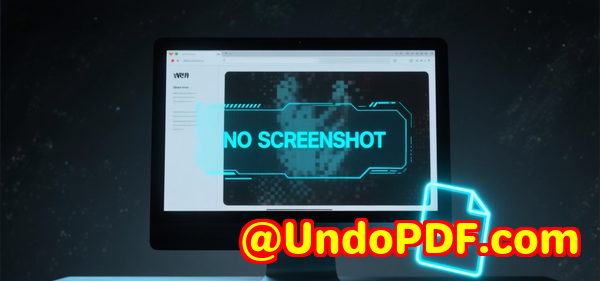
Screen Shield works by reducing the visible area of a PDF on the screen. The recipient can only view a portion of the document at a time.

Even better, the software detects screenshot attempts or when the viewer switches tabs or windows, automatically hiding or blurring the content.

This makes it virtually impossible for someone to capture an entire document without a huge effort.

I used it recently with a set of confidential design PDFs for a client.

Here’s how it worked:

  • I reduced the viewable area to 35%. The recipient could see just enough to review content but not enough to capture full pages.

  • I enabled dynamic watermarking with the recipient’s email and IP address. This added a psychological deterrentany attempt to screenshot is traceable.

  • Zoom functions were disabled to prevent enlarging a single page for easier capture.

The result? I finally felt secure sending sensitive materials without worrying about misuse.


Real-World Use Cases for Screen Shield

I’ve found Screen Shield incredibly useful in several scenarios:

  • Intellectual Property Protection: When sending design files, patent drafts, or proprietary graphics, this tool stops competitors from copying your work.

  • Financial Reports: CFOs and financial analysts often share PDFs containing sensitive numbers. With Screen Shield, only partial content is visible, keeping the rest safe.

  • Exam Questions & Educational Materials: Schools and universities can protect test papers and assignments from being shared online.

In one instance, I was sending an exam draft to a colleague for proofreading. Normally, I’d worry someone could screenshot and leak it.

With Screen Shield, I could restrict the visible area, ensuring only the parts under review were seen. It gave me peace of mind and eliminated a huge potential headache.


Core Features That Made Me Switch

I’ve tested several PDF security tools, but VeryPDF’s DRM Protector stood out. Here are the features I find indispensable:

  • Document Security & Access Control: I can set files to be viewable by invitation only, or require email validation.

  • Revoke Access Anytime: Accidentally sent a file to the wrong person? No problemI can instantly revoke access.

  • File Versioning & Replacement: I updated a report after noticing a typo. With a new version uploaded, everyone automatically got the latest file.

  • Copy, Print & Download Restrictions: Recipients can view files in the browser only. No copy-paste, no printing, no downloading.

  • Detailed Tracking & Analytics: I can see exactly who viewed the file, when, and for how long.

The Screen Shield feature, combined with dynamic watermarking, creates a security double layer that I haven’t found in other tools.

Other DRM solutions might encrypt PDFs, but they still allow screenshots. VeryPDF actually prevents that.


Personal Experience: How Screen Shield Saved My Work

I remember a particular projecta set of high-value design mockups I was sharing with a client overseas.

Previously, I’d have used a simple PDF password. One slip and the files could be shared anywhere.

With Screen Shield enabled:

  • Only a portion of each page was visible at a time.

  • Attempting screenshots blurred the content automatically.

  • The recipient had to verify identity before viewing.

Not only did this prevent potential leaks, it also reduced stress. I could finally focus on the project rather than worrying about who might misuse my work.

I’ve since used it for financial reports, internal strategic documents, and exam materials. Each time, the combination of Screen Shield and watermarking made unauthorised copying nearly impossible.


Why I Recommend VeryPDF DRM Protector

For anyone who handles highly sensitive PDFs, this tool is a must-have.

It solves practical problems:

  • Prevents screenshots and copying

  • Controls exactly who can view files

  • Tracks viewing history for accountability

  • Allows secure file sharing without sacrificing workflow

From my personal experience, VeryPDF DRM Protector with Screen Shield isn’t just another security featureit’s peace of mind for your digital assets.

If you deal with confidential documents and want real protection, I’d highly recommend trying it.

Click here to try it out for yourself: https://drm.verypdf.com/


How Screen Shield Works in Practice

Here’s a quick rundown of the technical side, in plain English:

  • Moveable Filter: You can adjust the visible area of the PDF, from 20% to 50%.

  • Blur on Screenshot: Any screenshot attempt triggers the screen to blur.

  • Focus Detection: Switching tabs or windows hides content automatically.

  • Dynamic Watermark Integration: Email, IP, or timestamp watermarking reinforces accountability.

This isn’t just a deterrent; it actively stops screen capture software from stealing your content.


Custom Development Services by VeryPDF

VeryPDF offers comprehensive custom development services to meet unique technical needs.

Whether you need PDF processing solutions for Linux, macOS, Windows, or server environments, VeryPDF’s expertise covers:

  • Python, PHP, C/C++, Windows API, Linux, Mac, iOS, Android, JavaScript, C#, .NET, HTML5

  • Windows Virtual Printer Drivers generating PDF, EMF, PCL, Postscript, TIFF, JPG

  • Printer job capture & monitoring for all Windows printers

  • Document format analysis: PDF, PCL, PRN, Postscript, EPS, Office

  • Barcode recognition & generation, layout analysis, OCR, OCR table recognition

  • Report and document form generators, graphical and image conversion tools

  • Cloud-based solutions for conversion, viewing, and digital signatures

  • PDF security, DRM protection, TrueType font technology, Office and PDF printing

For specific technical needs or custom solutions, contact VeryPDF through their support centre: https://support.verypdf.com/


FAQs

Q1: Can Screen Shield prevent all types of screenshots?

A1: While no solution can guarantee 100%, Screen Shield makes it extremely difficult by showing only a portion of the PDF and blurring content on screenshot attempts.

Q2: Can I still allow recipients to print or download files?

A2: Yes, you control print and download permissions per file, while Screen Shield protects against screen capture.

Q3: Will Screen Shield affect the reading experience?

A3: Only slightly. The recipient sees a portion of the content at a time, which encourages careful review rather than copying.

Q4: Can I combine Screen Shield with watermarking?

A4: Absolutely. Dynamic watermarks can show recipient info, making unauthorized sharing traceable.

Q5: Is VeryPDF DRM Protector suitable for large file volumes?

A5: Yes. It supports multiple files, cloud imports, versioning, and instant notifications for efficient management.


Tags / Keywords

  • PDF screenshot protection

  • DRM for PDFs

  • Screen Shield PDF

  • Protect PDF designs

  • Prevent unauthorized PDF sharing


Start securing your PDFs today with VeryPDF DRM Protector and Screen Shield. Click here to begin: https://drm.verypdf.com/

UndoPDF

How DRM prevents screenshots of sensitive PDF compliance reports in corporate audits

How DRM Prevents Screenshots of Sensitive PDF Compliance Reports in Corporate Audits

Every time our finance team prepares for corporate audits, I used to worry about one thing above all: sensitive PDF reports ending up in the wrong hands.

Imagine working late into the night on quarterly financial compliance reports, only to realise that a single screenshot could potentially leak confidential information externally.

For auditors, legal teams, and finance departments, this isn’t just a minor inconvenienceit’s a real compliance risk.

How DRM prevents screenshots of sensitive PDF compliance reports in corporate audits

That’s when I discovered VeryPDF DRM Protector with Screen Shield, a tool designed to prevent exactly that.

It wasn’t just another PDF security tool promising the moon; it delivered tangible results that changed the way I handled sensitive documents.


Why Standard PDF Security Isn’t Enough

In the past, I relied on password-protected PDFs or encryption alone.

Sounds secure, right? Wrong.

Even with strong passwords, recipients could still:

  • Take screenshots of confidential reports.

  • Use software plugins to bypass viewing restrictions.

  • Stitch together multiple screenshots to reconstruct the full document.

It hit me during a quarterly audit prepour reports contained intellectual property and sensitive financial numbers.

One slip-up, and it could be catastrophic for compliance.


Enter VeryPDF DRM Protector with Screen Shield

I first came across VeryPDF DRM Protector while searching for ways to safeguard our audit PDFs beyond passwords.

What stood out immediately was the Screen Shield feature.

Screen Shield isn’t just a fancy overlay; it fundamentally changes how recipients can view your files.

Here’s what it does:

  • Reduces visible screen area with a moveable filter, making screenshots partial.

  • Blocks content if a screenshot attempt is detected or if the viewer moves away from the tab/window.

  • Disables zoom in/out buttons, so no one can zoom out and capture a full page at once.

  • Works alongside dynamic watermarks showing email, IP, or viewing time, discouraging any attempt to leak content.

I remember testing it with our finance team. We set the viewable area at 20%, and it was astonishing how effectively it prevented full-page captures.

Even our tech-savvy auditors admitted it would take considerable effort to bypass.


How I Use Screen Shield in Real Scenarios

Let me give you a practical example.

We recently had a corporate audit, and I had to share a 100-page PDF containing financial KPIs, budget forecasts, and intellectual property insights.

Before DRM Protector:

  • I had to worry about who could take screenshots.

  • I spent hours monitoring downloads and sending follow-up emails for document security.

After enabling Screen Shield:

  • I uploaded the file to the VeryPDF cloud.

  • I set the viewable area to 35% for auditors.

  • Enabled dynamic watermarks for email and timestamp.

The result?

  • Auditors could review the reports normally without feeling restricted.

  • Attempted screenshots were blocked automatically, or only partial content appeared.

  • I received instant view notifications and detailed tracking analytics: who viewed what, for how long, and from where.

It saved me hours of oversight, and the team felt confident sharing sensitive documents.


Core Advantages That Set It Apart

Here’s why VeryPDF DRM Protector stands out for corporate compliance:

  1. Advanced Access Control

    • Invitation-only access, password protection, or email validation.

    • Revoke access at any time if documents go to the wrong person.

  2. Recipient Identity Verification

    • Users verify identity before viewing.

    • Eliminates anonymous sharing.

  3. File Tracking & Analytics

    • Track who viewed files, from where, and for how long.

    • Exportable reports help during audits.

  4. Dynamic Watermark & Screen Shield Combo

    • Watermarks tie viewers to their identity.

    • Screen Shield ensures screenshots are incomplete or blocked.

  5. Easy Cloud Import & File Management

    • Upload from Dropbox, Google Drive, Box, OneDrive.

    • Replace files as new versions without losing access control.

In my experience, no other PDF security tool I tried combined screenshot protection, dynamic watermarking, and detailed analytics so seamlessly.


Use Cases Where DRM Protector Shines

I’ve found Screen Shield especially useful in:

  • Corporate Audit Reports: Sensitive financial data protected from unauthorized sharing.

  • Legal Documents: Contracts, NDAs, or compliance agreements where screenshots can create leaks.

  • Intellectual Property Files: Design blueprints, R&D reports, patent drafts.

  • Examination Materials: Question papers, grading rubrics, and assessment templates.

One standout moment was when we had to share exam question drafts with external reviewers.

With Screen Shield and dynamic watermarking, I could finally send the files without second-guessing whether they’d be leaked.


Personal Experience: Time Saved & Peace of Mind

Before DRM Protector, sharing sensitive PDFs felt like walking on a tightrope.

Even if the recipients were trusted, I constantly feared accidental screenshots.

Now, I:

  • Upload files to the VeryPDF cloud.

  • Apply Screen Shield and dynamic watermarks.

  • Invite recipients and monitor access in real-time.

It’s effortless, secure, and scalable.

I’ve reduced oversight hours by more than 50%, and the finance team trusts the system completely.

Compared to other tools:

  • Standard PDF encryption only locks the file. It doesn’t prevent partial captures.

  • Other DRM solutions often require complex setup or local software installation.

  • VeryPDF DRM Protector works in the browser, integrates dynamic watermarks, and provides analytics instantly.


Key Takeaways

VeryPDF DRM Protector with Screen Shield solves real-world problems:

  • Prevents unauthorized screenshots.

  • Protects highly confidential PDFs like audit reports and legal documents.

  • Provides actionable analytics on file access and usage.

  • Integrates dynamic watermarking and content protection in one solution.

From my perspective, if you handle sensitive corporate reports, this is a no-brainer.

I’d highly recommend it to anyone who deals with large volumes of PDFs that require security beyond passwords.

Click here to try it out for yourself: https://drm.verypdf.com/


Custom Development Services by VeryPDF

VeryPDF offers tailored development services to meet your specific technical requirements.

Whether you need PDF processing solutions on Linux, macOS, Windows, or server environments, or custom utilities in Python, PHP, C/C++, Windows API, Linux, Mac, iOS, Android, JavaScript, C#, .NET, or HTML5, VeryPDF has the expertise.

They specialise in creating:

  • Windows Virtual Printer Drivers for PDF, EMF, and image formats.

  • Printer job capture and monitoring utilities.

  • System-wide and app-specific hooks to monitor and intercept Windows APIs.

  • Document analysis, barcode recognition, OCR, and table recognition for PDF and TIFF.

  • Report generators, image/document conversion tools, and cloud-based solutions.

  • Advanced PDF security, digital signatures, DRM protection, and virtual data rooms.

For custom solutions, contact VeryPDF via: https://support.verypdf.com/


FAQs

1. How does Screen Shield prevent screenshots?

Screen Shield reduces the visible screen area, blurs content on screenshot attempts, and blocks third-party screenshot software, making unauthorized captures incomplete.

2. Can I use DRM Protector for non-PDF files?

Yes. It supports Word, Excel, PowerPoint, images, and even video files.

3. Is recipient identity verification mandatory?

You can enable or disable identity verification based on the sensitivity of your files.

4. Can I revoke access after sharing a document?

Absolutely. Access can be revoked instantly if a file is sent to the wrong person.

5. How does dynamic watermarking enhance security?

Dynamic watermarks display recipient information, timestamp, and IP address on the document, discouraging sharing or screenshots.


Tags/Keywords

  • Prevent PDF screenshots

  • Corporate audit document security

  • PDF DRM protection

  • Sensitive report security

  • Screen Shield PDF tool

UndoPDF

Why accountants rely on DRM Protector to secure PDF tax returns from screenshot attempts

Why Accountants Rely on DRM Protector to Secure PDF Tax Returns from Screenshot Attempts

Every tax season, I used to feel a knot in my stomach every time I sent clients their sensitive PDF tax returns.

Even after encrypting the files and setting passwords, there was always that nagging thought: what if someone took a screenshot?

Unlike copying or printing, screenshots are sneaky, almost invisible. One careless click, and confidential financial data could be exposed.

Why accountants rely on DRM Protector to secure PDF tax returns from screenshot attempts

That’s when I discovered VeryPDF DRM Protector with Screen Shield, and it completely changed the way I manage sensitive documents.

This tool isn’t just about password protectionit actively prevents screenshots, making it an indispensable solution for accountants, financial advisors, and anyone handling confidential PDFs.

You can try it yourself here: https://drm.verypdf.com/.

How I Found a Real Solution for PDF Screenshot Protection

I had tried multiple tools beforesome offered encryption, others promised trackingbut none addressed screenshots effectively.

VeryPDF DRM Protector stood out because it added a layer I hadn’t seen elsewhere: Screen Shield.

This feature reduces the visible area of a PDF dynamically.

Instead of showing the entire page, it shows a portion that the viewer can move around, effectively discouraging screenshots.

The first time I used it, I was amazed at how intuitive it was.

I uploaded a set of client tax returns and applied the Screen Shield at 35% viewable area.

Even though the clients could navigate the PDF, capturing the full document in one go was nearly impossible.

Key Features That Make Screen Shield a Game-Changer

1. Screenshot Protection That Actually Works

The magic of Screen Shield lies in its active response.

When someone tries to take a screenshotor even switches tabs or windowsthe content automatically blurs or hides.

Unlike static watermarks, this dynamic barrier ensures that sensitive financial data can’t be captured casually.

2. Viewable Area Control

You can scale the PDF so the recipient sees only 20%, 35%, or 50% of the page.

In practice, I found 35% to be the sweet spot for readability while still preventing easy screenshotting.

This feature also blocks software and plug-ins that normally capture full-page screenshots, giving me peace of mind.

3. Dynamic Watermarks

Combining Screen Shield with dynamic watermarks takes security even further.

You can watermark a file with the recipient’s email, IP address, or timestamp.

The first time I sent a tax return with this enabled, I noticed clients were extra carefulthey clearly realised the file was being tracked.

It’s subtle but effective psychology: if someone thinks twice before screenshotting, your data is safer.

4. Comprehensive Access Control

Beyond screenshots, VeryPDF DRM Protector lets you control who sees your files and when:

  • Invitation-only access or public links with email validation.

  • Recipient identity verification before viewing.

  • Ability to revoke access immediately if a wrong file is sent.

  • Scheduled start and end times for document access, or self-destruct after viewing.

For accountants like me, this means I can send a sensitive PDF and sleep at night knowing it’s fully controlled.

5. File Management & Analytics

I also loved the cloud import options and versioning capabilities.

I could upload files from Dropbox, Google Drive, or OneDrive.

If I noticed a typo in a tax return after sending, I replaced it with a new version instantly.

Analytics is another big win: I can see who viewed the file, how long they spent on it, and whether it was printed or downloaded.

This level of insight was impossible with other PDF tools I’d tried.

Real-Life Scenarios Where DRM Protector Shines

Client Tax Returns

Every accountant’s nightmare: sending highly sensitive tax files and worrying about leaks.

Screen Shield ensures even if a client is careless, their screenshots don’t compromise other clients’ information.

Financial Statements & Reports

Annual financial reports or performance summaries often contain trade secrets.

By limiting viewable areas and adding dynamic watermarks, VeryPDF DRM Protector protects corporate data from being copied or shared internally or externally.

Legal & Intellectual Property Documents

Beyond accounting, I’ve seen colleagues in law firms and R&D departments adopt this tool.

Exam questions, IP documents, and confidential contracts all benefit from Screen Shield.

Why I Prefer VeryPDF Over Other Tools

I’ve tried Adobe’s PDF protections and some niche screenshot-blocking apps.

Most fail because they rely only on encryption or static watermarks, which do nothing against screen captures.

VeryPDF’s combination of Screen Shield + dynamic watermarks + access control is unique.

It’s not just protectionit’s a deterrent.

Another advantage is simplicity.

I don’t need to train clients extensively.

They can open the PDF in their browser, navigate normally, and I still maintain full security.

Other tools often require complex plugins or special viewers, which can frustrate users.

Personal Experience: How It Saved Me Time and Stress

During last year’s tax season, I had over 100 sensitive PDFs to send.

Before VeryPDF DRM Protector, I spent hours double-checking passwords, chasing clients, and worrying about leaks.

With Screen Shield enabled, I uploaded, applied access control, and sent linksall in under an hour.

No stress, no sleepless nights, and no last-minute phone calls about accidental exposure.

One standout moment: a client called, impressed that they couldn’t easily screenshot their own file to forward internally.

It sparked a conversation about data security, which positioned me as a trusted advisor, not just an accountant.

That alone made the investment worthwhile.

Why Accountants Should Consider DRM Protector

If you handle sensitive PDFs, especially tax returns, screen capture protection is no longer optionalit’s essential.

VeryPDF DRM Protector solves multiple pain points:

  • Prevents screenshots and content scraping

  • Controls who can view and for how long

  • Tracks user activity with detailed analytics

  • Combines watermarking and screen protection for added deterrence

I’d highly recommend this to anyone who deals with large volumes of sensitive PDFs.

It’s easy to implement, reliable, and gives you true peace of mind.

Start your free trial now and boost your productivity: https://drm.verypdf.com/.

Custom Development Services by VeryPDF

VeryPDF offers custom development services for organisations with specialised technical needs.

Whether you require PDF processing on Linux, macOS, Windows, or server environments, VeryPDF can deliver tailored solutions.

Services include:

  • Development in Python, PHP, C/C++, Windows API, Linux, Mac, iOS, Android, JavaScript, C#, .NET, and HTML5

  • Custom Windows Virtual Printer Drivers for PDF, EMF, and image formats

  • Tools to capture and monitor printer jobs in formats like PDF, EMF, PCL, Postscript, TIFF, and JPG

  • System-wide and application-specific hooks to monitor Windows APIs, including file access APIs

  • Analysis and processing of PDFs, PCL, PRN, Postscript, EPS, and Office documents

  • Barcode recognition and generation, layout analysis, OCR, and OCR table recognition

  • Report and document form generators, graphical and image conversion tools, and document management

  • Cloud-based solutions for document conversion, viewing, and digital signatures

  • Security technologies including DRM protection, digital signatures, TrueType font handling, and document printing

For tailored solutions, contact VeryPDF via https://support.verypdf.com/.

FAQs

1. Can DRM Protector completely prevent screenshots?

Yes, the Screen Shield feature dynamically reduces the viewable area and blurs content when screenshot attempts are detected.

2. Will my clients find it difficult to view the files?

Not at all. Recipients can navigate and read normally, though viewing the entire document at once is restricted.

3. Can I track who views my PDFs?

Absolutely. You get detailed analytics including who viewed the file, for how long, and whether it was printed or downloaded.

4. Can I combine Screen Shield with watermarks?

Yes. Dynamic watermarks can display recipient email, IP address, and timestamps, adding a psychological deterrent to leaks.

5. What file types does DRM Protector support?

It supports PDFs, images, Word, Excel, PowerPoint, and even video previews in the browser.

6. Can I revoke access if a file is sent to the wrong person?

Yes, access can be revoked instantly, providing complete control over sensitive information.

Tags / Keywords

  • PDF screenshot protection

  • DRM Protector for accountants

  • Secure tax return PDFs

  • Screen Shield PDF security

  • Dynamic watermark PDFs

  • Prevent PDF leaks

  • Sensitive document protection

This tool has transformed the way I handle confidential PDFs and is now a cornerstone of my workflow.

For accountants, financial advisors, and anyone handling sensitive client information, it’s a no-brainer investment.

UndoPDF

The easiest way to prevent screenshot capture of confidential business PDF presentations

The easiest way to prevent screenshot capture of confidential business PDF presentations

Stop screenshot leaks from your confidential PDF presentations with VeryPDF DRM Protector’s Screen Shield. Keep control even after sharing files.


Every time I had to send out a confidential presentation to my team or external partners, there was always that nagging thought in my head: what if someone just took a screenshot and passed it on?

You can encrypt a PDF, block downloads, and even disable printing, but one thing always felt unstoppablescreenshots.

And the truth is, screenshots are the simplest way for someone to steal your content.

The easiest way to prevent screenshot capture of confidential business PDF presentations

I’ve been in situations where I needed to share performance reports with board members, or exam material with teachers, or even draft product roadmaps with investors. I knew that once the PDF left my hands, I had no real control. That was until I started using VeryPDF DRM Protector with Screen Shield.


Why screenshots are the silent threat

Let’s be real. Copy-paste restrictions and password protection are old-school tricks. Anyone with a phone can point it at the screen and capture your slides.

Even worse, some software tools can grab full-page screenshots in seconds. That means your confidential document can end up on someone’s desktop, forwarded to competitors, or even leaked online before you know it.

That’s where preventing screenshots of PDFs becomes the actual game-changer.


My first run with VeryPDF DRM Protector

When I stumbled across VeryPDF DRM Protector (you can check it out here: https://drm.verypdf.com/), the promise was bold: “Stop screenshots with Screen Shield.”

I’ll admit, I was sceptical. Blocking screenshots felt like one of those too-good-to-be-true features. But the first time I toggled Screen Shield on, I could see right away that this wasn’t just another checkbox security option.

Instead of letting the user see the entire page, the software reduces the visible screen area. Think of it like a sliding window. You only see a part of the page at a time. That’s annoying enough for anyone trying to screenshot the whole document because now they’d need to take dozensor even hundredsof tiny captures and stitch them back together.

The kicker? Even if they tried, the dynamic watermark plastered their email and IP right across the visible portion of the document. Not exactly something you want floating around on leaked files.


Core features that actually matter

Here’s what stood out to me while using it:

1. Screen Shield in action

  • Cuts down the viewable area to, say, 20%, 35%, or 50%.

  • Adds a watermarked overlay, so screenshots become useless.

  • Automatically hides or blurs content when the system detects a screenshot attempt or even when the viewer switches tabs.

This alone already changes the game. I tested it by trying to screenshot with both my computer shortcut and third-party capture software. The content either vanished or blurred instantly.

2. Locking down viewing options

  • You can disable Zoom In and Zoom Out buttons. That prevents someone from magnifying sections and taking piecemeal screenshots.

  • You can even scale the document so the recipient only ever sees part of the page, not the whole slide deck.

I tried this with a financial presentation. The result? My recipient could still read and navigate, but any attempt to screenshot was flat-out frustrating for them. Exactly the kind of deterrent I wanted.

3. Layered security with watermarks

Pair Screen Shield with Dynamic Watermarks.

This lets you embed user data like:

  • Email address

  • IP address

  • Date and time of viewing

The psychology is simple. If someone knows their name is stamped right across the screenshot, they think twice before sharing it.


Who actually needs this?

I’ll be bluntif you deal with sensitive documents, you need it.

  • Business leaders sharing financial reports with investors.

  • Teachers and exam boards distributing exam papers.

  • Lawyers handling case files and client contracts.

  • Startups sending product roadmaps to potential partners.

  • HR teams rolling out confidential policy changes.

I first used it for investor pitch decks. Normally, I’d worry about my slides making their way to competitors if someone got careless. With Screen Shield on, I finally felt like I had some control.


Why this beats everything else I tried

I’ve tried the usual suspects: Adobe security settings, password protection, and even some online “secure viewers.”

Here’s the problem:

  • Passwords can be shared.

  • Printing can be blocked, but screenshots can’t.

  • Secure viewers still let you see the whole document.

VeryPDF DRM Protector takes it further by adding friction right where it hurtsscreenshots.

You can’t screenshot what you can’t properly see.

And yes, some might argue, “But what if they use a phone camera?”

Sure, nothing stops someone from physically snapping a photo of the screen. But let’s be honestthat’s low quality, awkward, and with watermarks in place, they’ll out themselves immediately.


Real-world scenarios where Screen Shield saved me

  1. Boardroom presentations

    I shared quarterly numbers with directors who often access files on personal laptops. Normally, I’d sweat over data being leaked outside the board. With Screen Shield, I stopped worrying.

  2. Exam paper distribution

    A friend of mine in education used it to distribute exam questions. Students couldn’t screenshot and share. Plus, every file had a dynamic watermark tied to their email. Any leak could be traced.

  3. Legal case files

    Law firms often send PDF bundles. With DRM Protector, even if someone tries to grab parts of the file, they end up with watermarked scraps.


Small inconvenience vs big protection

Here’s the honest trade-off: Screen Shield does make viewing less smooth for recipients. They can only see a slice of the document at a time.

But for highly confidential files, that inconvenience is worth it.

I use it selectivelyonly for files that would cause serious damage if leaked. Think intellectual property, financial data, or exam papers. For everyday PDFs, I don’t bother.


Extra benefits beyond screenshots

What surprised me was how much more DRM Protector packs in:

  • Revoke access anytime if you send the wrong file.

  • File tracking and analytics to see who opened your file, when, and for how long.

  • Expiry dates and self-destruct timers for sensitive material.

  • Copy and paste prevention, plus control over whether users can print or download.

  • Multi-format support, including Word, Excel, PowerPoint, images, and even videos.

It’s not just about screenshotsit’s about total control.


Final thoughts and recommendation

At the end of the day, VeryPDF DRM Protector with Screen Shield solved one of the biggest gaps in PDF security: stopping screenshots.

It gave me peace of mind when sharing files that truly mattered.

If you’re sending confidential PDFspresentations, exams, contracts, or reportsthis tool is hands down the easiest way to keep control after hitting send.

I’d highly recommend it to anyone who doesn’t want their hard work walking out the door in a screenshot.

Click here to try it out for yourself: https://drm.verypdf.com/

Start your free trial today and lock down your sensitive files.


Custom Development Services by VeryPDF

Not every business needs the same level of protection. Some need integration with custom workflows, others want automation at scale. That’s where VeryPDF steps in with bespoke development services.

They build tailored solutions across multiple platformsLinux, Windows, macOS, mobile, and the cloud.

Their expertise covers:

  • Programming languages like Python, PHP, C/C++, .NET, C#, and JavaScript.

  • Virtual printer drivers that can generate PDFs, EMFs, or images.

  • Printer monitoring tools that capture print jobs as PDF, TIFF, or Postscript.

  • Hook-layer technologies to intercept Windows APIs for file access monitoring.

  • OCR and barcode recognition for scanned documents.

  • Layout analysis and table extraction for PDFs and TIFFs.

  • Tools for document security, DRM, digital signatures, and font technology.

  • Cloud-based conversion and secure file-sharing solutions.

If you’ve got a project that requires something beyond off-the-shelf tools, reach out via their support centre: https://support.verypdf.com/.


FAQ

1. Can DRM Protector completely stop screenshots?

It prevents software-based screenshots and makes manual screenshots impractical by limiting the viewable area and applying dynamic watermarks.

2. What is Screen Shield?

Screen Shield is a moveable filter that restricts the visible portion of a PDF and hides or blurs content during screenshot attempts.

3. Does Screen Shield affect the user experience?

Yes, it limits convenience, but it’s designed for cases where security outweighs ease of use.

4. Can I revoke file access after sending it?

Absolutely. You can revoke access instantly if you share the wrong file or if the situation changes.

5. Who benefits the most from DRM Protector?

Businesses, educators, legal teams, and anyone handling sensitive data. It’s especially useful for presentations, exam papers, and contracts.


Tags / Keywords

  • prevent PDF screenshots

  • secure business presentations

  • PDF DRM protection

  • protect confidential documents

  • VeryPDF Screen Shield


The easiest way to prevent screenshot capture of confidential business PDF presentations is by using VeryPDF DRM Protector with Screen Shield.